Is Your Insignia Fire TV Screen Flickering? (Fix It Fast!)

We know how frightening the Insignia Fire TV screen flickering could be, as most users will instantly assume the worst–hardware failure.
However, we’re here to inform you that this may not always be the case.
There are many other things that can cause screen flickering, lines, or other artifacts on the TV screen, which can be easily fixed with a few simple steps without technical expertise.
Let’s get into the guide and fix the issue!
Insignia Fire TV Screen Flickering – 7 Advanced Ways To Fix!
📍Note: Have you tried unplugging the Insignia Fire TV from the wall for 3 minutes?
1. Change your TV Input Source
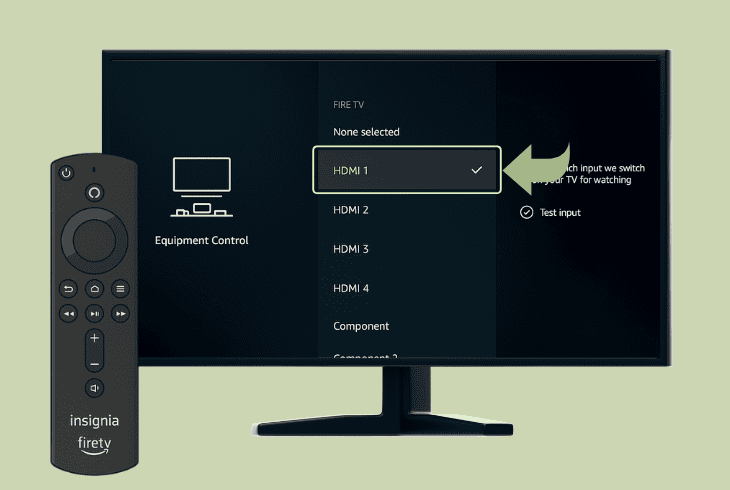
The first thing to do is try changing the input source on your Insignia Fire TV.
This is important to determine whether the screen flickering appears because of a connected source or from the TV.
To change the input source, you’ve got a few options:
It’s important to choose the “Fire TV” input source, so you can start viewing the actual feed from the TV, not the connected device.
Now, try to determine whether the flickering issue is still there.
The outcome should be clear:
Let’s continue chronologically!
2. Inspect the HDMI Port/Source
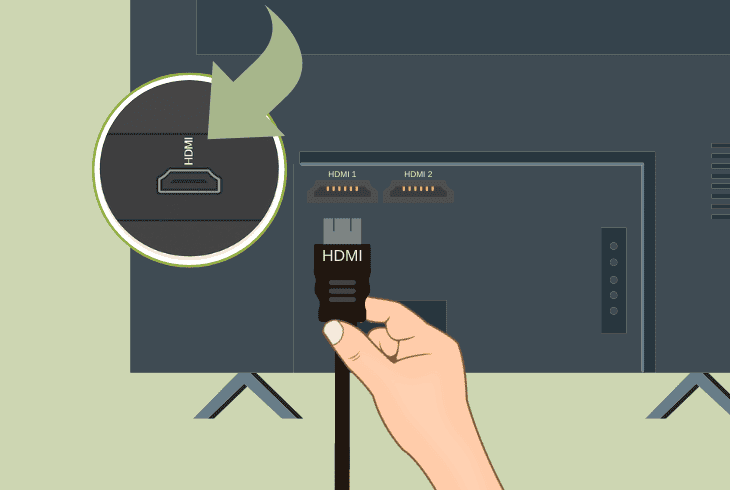
If you have identified that the screen flickering only appears when you’re viewing the source of a third-party device, this makes things much simpler.
It means that something along the connection between your video transmission device, whether it’s a console, PC, or other is causing the problem.
📍Note: Skip this step if you have the flickering issue on the “Fire TV” source.
Here are a few things to inspect:
Also, try to wiggle the HDMI cable while connected. If the flickering lines on Insignia Fire TV screen start to change or disappear, this justifies the origin.
In that case, you’ll need to replace the HDMI cable with one that is guaranteed to work.
3. Drop the Fire TV Refresh Rate

Sometimes, whether or not you have a connected HDMI device, the screen of your Insignia Fire TV could be flickering because of a mismatch in the refresh rate.
In other cases, it’s only a bug that you can easily fix by dropping your refresh rate from 60 Hz to 50 Hz and then 60 Hz again.
There are two main ways to change the refresh rate:
Through the Main Settings:
- Press the Home button on your remote.
- Head to “Settings” → “Display & Audio”.
- Choose “Display” → “Video Resolution”.
From here, select the same resolution that you’re currently using, but with the other refresh rate.
For instance, you’re currently rocking 60 Hz, drop it down to 50 Hz or vice versa.
Then check if the flickering is still there.
In case it’s not, you can try switching back to the original refresh rate.
Through the Hidden Menu:
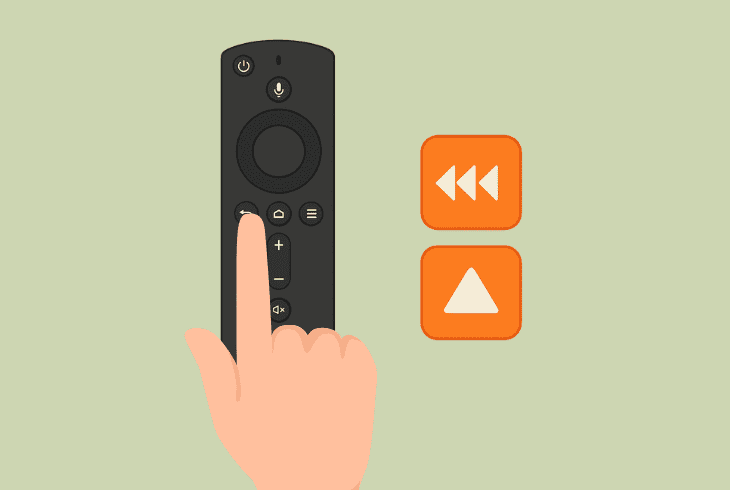
If you didn’t know, there is a hidden menu that automatically cycles through the available Fire TV resolutions and refresh rates.
The way to select one would be to press the “Select” button before the resolution changes.
Here’s how it works: press the Rewind and Up buttons on the remote control for about ~15 seconds and release when the hidden menu appears.
Then, resolutions along with their refresh rates will start cycling through and changing every 5 seconds.
When you want to select one, just press the “Select” button on your Fire TV remote.
4. Match the Original Frame Rate
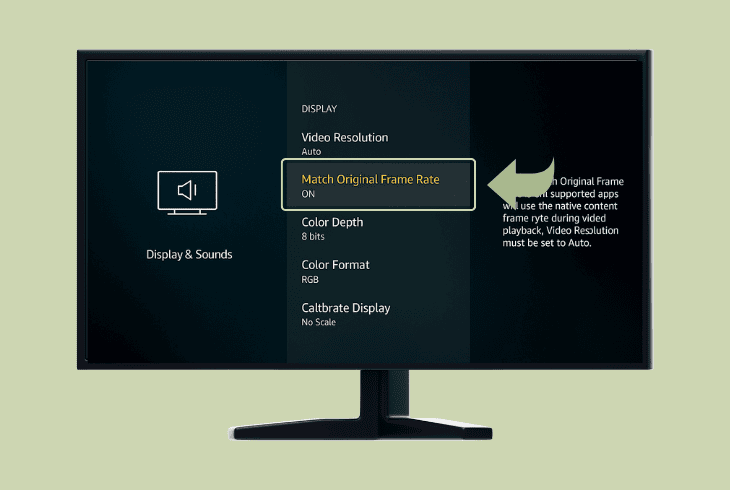
Another thing that you could try, no matter if it’s currently disabled or not, is to use the option called “Match Original Frame Rate”.
This option aims to synchronize the refresh rate of your Insignia Fire TV with the content that is being played.
Well, this option can either help you stop the flickering issue or cause it if it’s enabled.
So, we recommend going to “Settings” → “Display & Audio” → “Display” and checking the setting.
What you need to do is very simple:
If the annoying flickering disappears, just leave the setting as it is.
However, keep in mind that this setting gets engaged only when viewing content, hence it may be helpful if you only face the flickering problem when watching content from a particular app.
💡Quick Tip: If you have the flickering problem only in a specific streaming app, test different apps to determine whether the problem appears on all of them or just one application.
5. Test with a Different Resolution
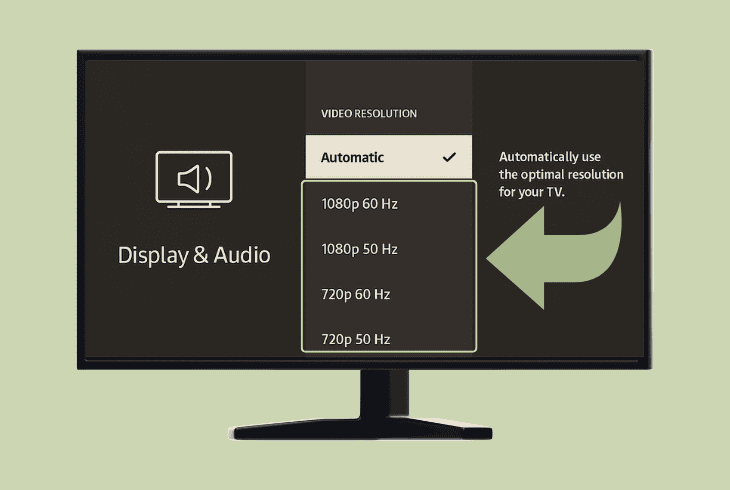
Sometimes, the Insignia Fire TV flickering appears because of a bug with the resolution, and the solution is to temporarily change to a different resolution.
The process is very straightforward:
From the home screen, go to “Settings” → “Display & Audio” → “Display” and choose “Video Resolution”.
If you don’t see this menu, just press and hold the Rewind and Up buttons on the remote control for about ~15 seconds until the hidden menu appears, and change it from there.
You’ll have a few options:
We recommend going as low as 1080p 60/50 Hz and testing whether the flickering is still there.
If yes, go even lower to 720p 60/50 Hz and test. If the flickering disappears, you can try going back to your original resolution and burying the problem.
⚠️Important: If you’re trying to transfer 4K through an HDMI cable, you need a short HDMI cable (>10 feet); otherwise, you’ll experience flickering or a black screen.
6. Check and Solve TV Overheating

If your Insignia Fire TV screen keeps flickering, the TV could be overheating, which causes the internal components, such as the backlight, to behave weirdly.
To determine whether the Fire TV is overheating, touch the back panel with your palm, and you will instantly know if it’s too hot.
If your Insignia Fire TV seems to be overheating, an even more fatal issue will likely arise soon, so you need to act quickly. Here’s what to try:
- Avoid direct sunlight on your Insignia TV panels.
- Verify that the environment is properly ventilated.
- Relocate nearby heat emitters such as radiators.
- Clean the TV opening vents by using a vacuum.
The best thing to do if your TV is too hot and overheating is just turning it off for 15 minutes and later checking whether the flickering is still there.
If not, you’ll need to deploy a few long-term overheating solutions!
7. Hardware TV Inspection (Advanced)
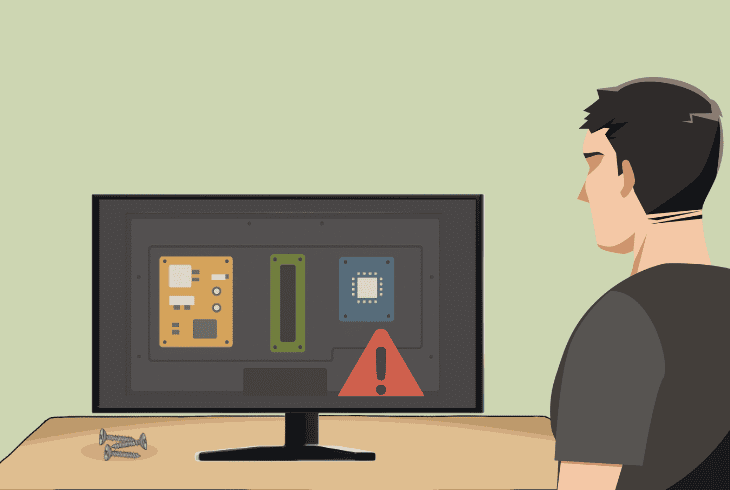
If your Insignia Fire TV is still flickering after trying all the software solutions, there could be a hardware issue inside the TV itself.
While this is not very common, internal component failures, especially in one of the main boards, can lead to persistent flickering or lines in the display.
⚠️ Important: Opening up the Insignia Fire TV will void any remaining warranty.
Safe TV Disassembly:
- Unplug the TV completely and place it face down on a soft, clean surface, such as a towel or blanket, which works well.
- Using a Phillips screwdriver, remove all the screws from the back panel and gently pry open the back panel of the television.
- Once inside, you’ll see several circuit boards connected by ribbon cables and wires, and you’ll need to recognize what each does.
Now let’s take a closer look at what to check:
🟢 Power Supply Board
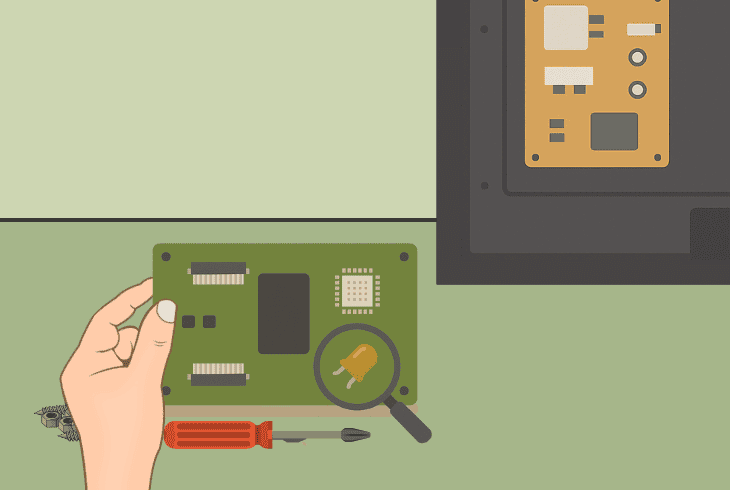
This board usually sits near the center or side of the panel. It takes power from the wall and distributes it to other components.
- Look for bulging capacitors, burn marks, or unsoldered joints.
- If you see damage, the power board may need to be replaced.
Power boards for Insignia TVs are usually easy to find online!
🔵 Main Logic Board
This board handles all video inputs, streaming, and processing, and it’s pretty much the most important piece of your TV.
- Check for signs of overheating, loose connectors, or visibly damaged components.
- A faulty main board can cause display issues, including flickering or distorted color.
These boards can’t be replaced by users at home, as they typically require coding and scripting by developers in order to be integrated with your TV.
🟣 Timing Control Board
The T-Con board is typically found near the center and is responsible for timing signals that control the pixels on your screen.
- Flickering, vertical lines, or ghosting are often symptoms of a bad T-Con board.
- Inspect the ribbon cables going to the display and verify they are firmly connected.
📍Note: A new T-Con board may not work immediately on some models, as it needs to match the panel’s exact refresh timing.
Finn Wheatley, a Master’s graduate in Computer Science from UCL, London, honed his skills at small data science consultancies. There, he helped large corporations enhance their data capabilities by deploying cutting-edge machine learning analytics and resolving technical hurdles.