

Insignia Fire TV No Sound? Quick Fixes to Try Today!


We understand the frustration of the Insignia Fire TV no sound problem, especially after you have already tried some fixes, but none of them worked.
Well, this quick guide will walk you through a series of common and advanced troubleshooting steps to help you discover and fix the problem in minutes.
Without further ado, let’s get started!
Insignia Fire TV No Sound – Fixed in 9 Guaranteed Methods!
📍Note: Have you tried rebooting your Insignia Fire TV?
1. Check Mute & Volume Status
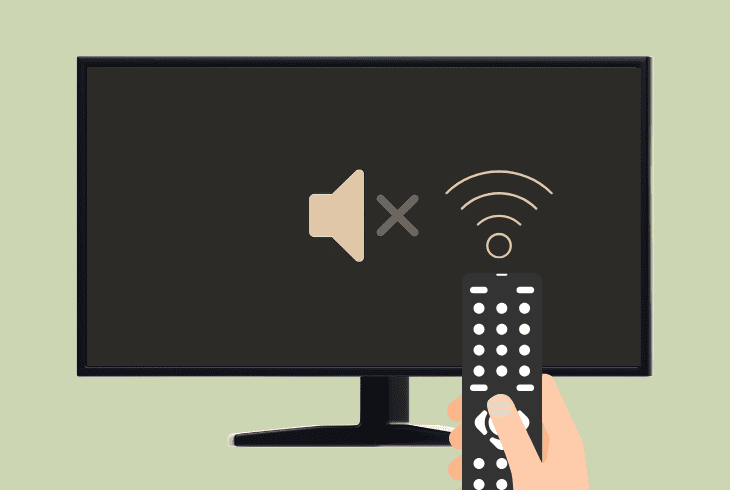
The first thing to do is, of course, check the mute and volume status of your Insignia Fire TV.
- To unmute the TV, press the button with the speaker and “x” icon once.
- To increase the volume, press the Volume Up “+” button several times.
It’s crucial to ensure that your TV is not muted, even if there is no sound currently.
Also, leave the volume at about 75%, so when we do fix the issue later on, you will be able to tell instantly.
2. Adjust the TV Audio Settings
If your Insignia Fire TV is not muted and the volume is not too low, the next thing to do is go over the audio settings and adjust them correctly.
To access these options, go to the “Settings” and enter within the “Display and Sounds” tab!
Display & Sounds
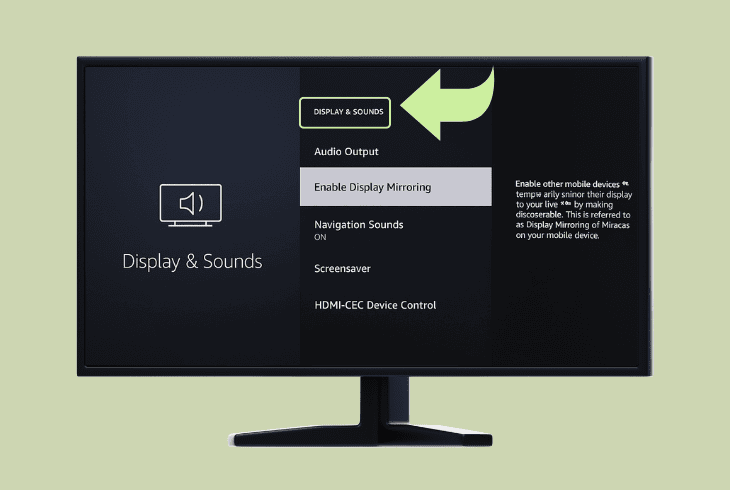
Here, inside the “Display and Sounds” pane, scroll down to find and configure:
Audio Mixing
The “Audio Mixing” is an option that allows you to choose how audio layering is handled.
For example, what happens when Alexa is trying to tell you something like a notification, while you are streaming content from an application.
We recommend leaving this to “ON”, so you can hear Alexa sounds while your content plays!
Navigation Sounds
The “Navigation Sounds” are the clicking and popping noises that you’re hearing while you are at the menus, so we recommend leaving them on.
However, if you don’t want to hear them, you can disable them anytime.
HDMI CEC Device Control
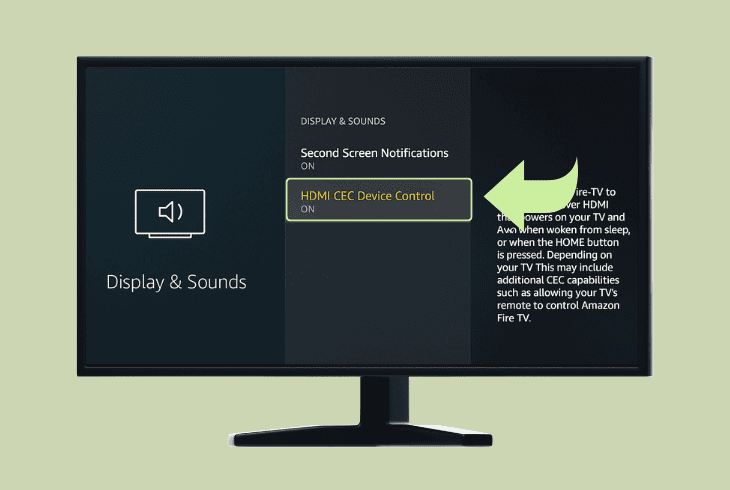
The HDMI-CEC (Consumer Electronics Control) is a feature that allows you to control devices such as consoles and soundbars with your TV remote control.
If you are listening to an audio output from, let’s say HDMI soundbar, turning off this feature can instantly fix your audio issue.
Sound Settings
If you enter the “Sound Settings” menu, you’ll review more options for configuration:
Sound Mode
The “Sound Mode” is a preset of settings, made to fit specific occasions:
| Explanation: | When to Choose? | |
| Standard | This is a balanced audio mode without special emphasis. | Best for everyday watching, for any type of content. |
| Movie | Boosts bass and enhances speech clarity for dialogue. | Best for watching movies and TV shows. |
| Music | Enhances mid and high tones for richer instruments. | Best for listening to live concerts or music videos. |
| News | Emphasizes vocal frequencies with less bass and clearer speech. | Best for watching news or communicative shows. |
| Sports | Often tries to add crowd ambiance or clarity when viewing sports. | Best for sports shows and broadcasts. |
| User / Custom | Allows you to manually adjust bass, treble, and balance to customize the sound. | Best for customization and personal tuning. |
💡Tip: If you’re using a custom sound mode, try to set the Bass, Treble, and Balance to the middle!
Advanced Settings
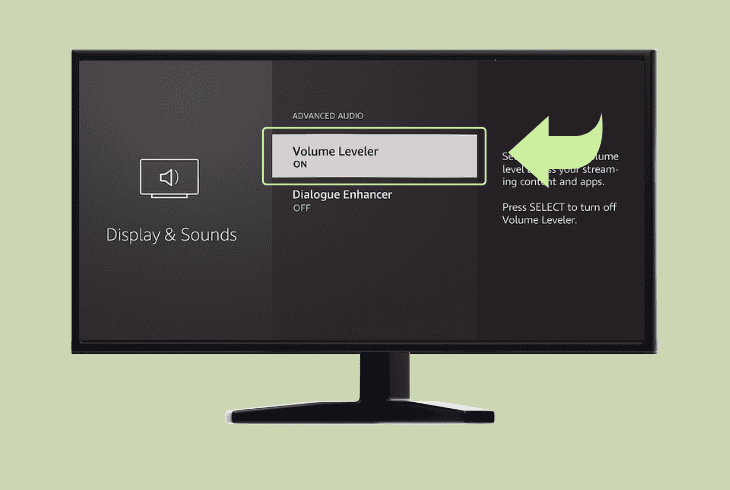
The advanced settings contain a few critical options:
We recommend enabling both options!
3. Enable Insignia *TV Speakers*
If you’ve gone through all the audio settings to no avail, it’s time to check if the TV speakers are enabled through the settings.
If the built-in Insignia Fire TV speakers are “OFF” and you have no connected device to listen to audio from, no matter the volume or mute, there won’t be audio.
To enable the Insignia Fire TV built-in speakers, go to “Display and Sounds” → “Audio Output” → “TV Speakers” and set them to “ON”.
Now test whether your TV sound is working. If not, keep reading!
4. Change Digital Audio Format
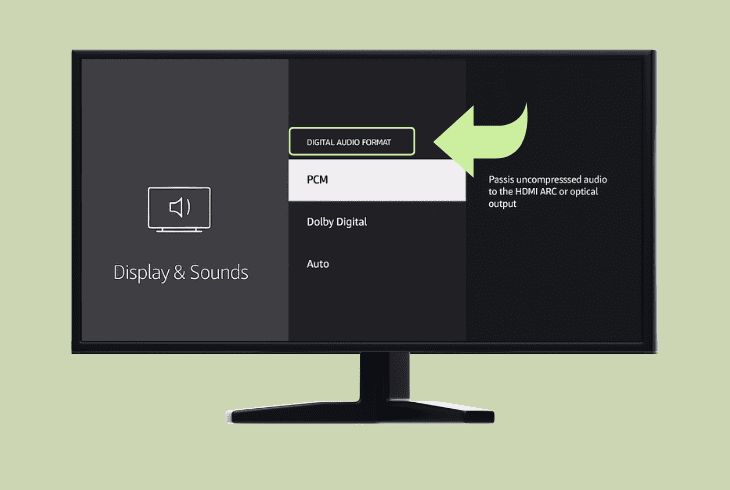
The “Digital Audio Format” option allows your TV to send multi-channel audio, such as 5.1 or 7.1, to improve your sound experience.
⚠️Important: This option can entirely mute your audio if your connected audio output device does not support the selected format.
Go to “Display and Sounds” → “Audio Output” → “Digital Audio Format” and adjust:
If you’re experiencing Insignia Fire TV sound issues, we recommend going with “PCM” for now.
📍Note: On some Insignia Fire TVs, the “Audio Format” options are under the “Surround Sound” tab!
5. Reset your TV Sound Settings
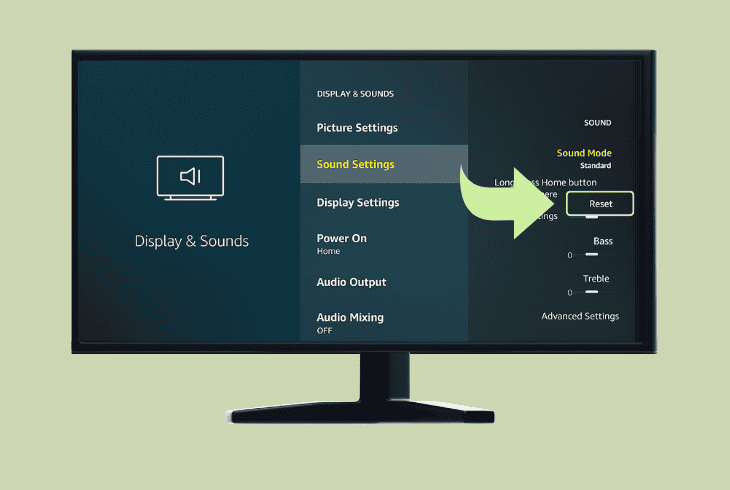
If you still have no audio on your Insignia Fire TV, you can just reset all audio settings by going to the “Display and Sounds” → “Sound Settings” → “Reset”.
This will reset ALL audio settings on your Insignia Fire TV, and if the problem was related to any of them, with the default values, the issue must disappear.
If it doesn’t work, continue reading…
6. Unpair & Forget Bluetooth Units
If the Insignia Fire TV sound not working, it’s possible that your TV has automatically connected to a previously remembered Bluetooth speaker.
This will ultimately send the audio output of your TV to the speaker, which you may currently not hear, so it’s best to forget all Bluetooth devices.
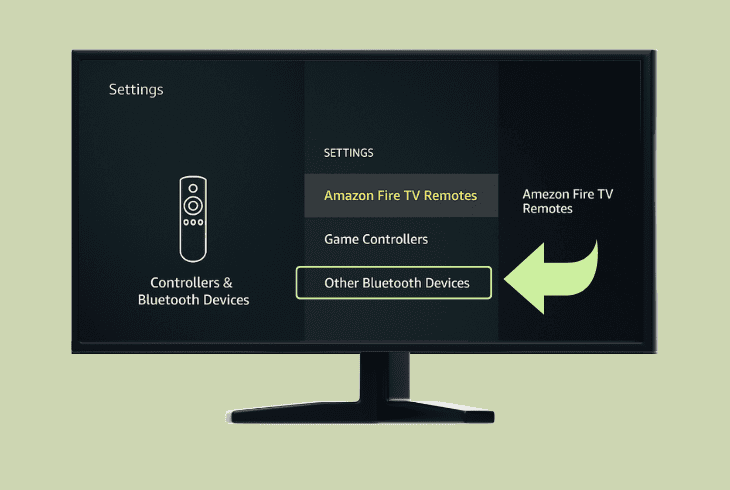
To do so, go to the “Settings” → “Controllers & Bluetooth Devices” → “Other Bluetooth Devices” → Press the (≡) button on the remote → “SELECT”.
This will remove the selected Bluetooth device.
We recommend repeating for ALL the Bluetooth devices and then checking whether your TV sound is back.
7. Bypass the Connected Speakers
If you have a connected audio device such as a soundbar, speaker, home theater system, or even headphones, we need to narrow down the issue.
We need to know whether the problem comes from the Insignia Fire TV or the connected audio device is preventing you from hearing the TV output.
To narrow down the issue, disconnect everything!
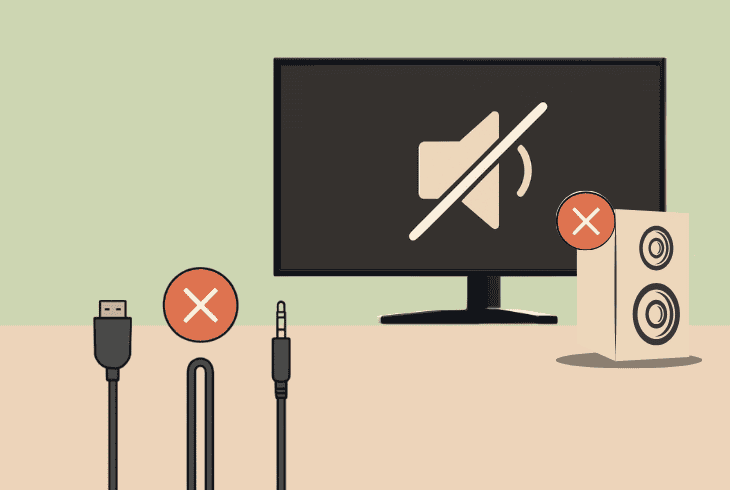
That includes devices connected over:
- HDMI
- AUX
- Optical
- RCA
We recommend only leaving the power cable of the TV connected, then double-checking if the “TV Speakers” are enabled and testing the audio.
If you hear no audio, even when all devices are disconnected, this signals that the problem is on the TV side.
It may be related to the app you’re streaming, though!
8. Test Streaming Different Channels
The audio loss of the Insignia Fire TV could be related to the app/channel that you are currently streaming, so we recommend testing with multiple.
For example, go with a proven platform such as YouTube or Netflix, and try streaming multiple videos or content to determine whether the problem persists.
If yes, and you can hear anything, no matter which app or channel you use, the problem with the TV might be much more serious.
9. Factory Reset the Insignia Fire TV
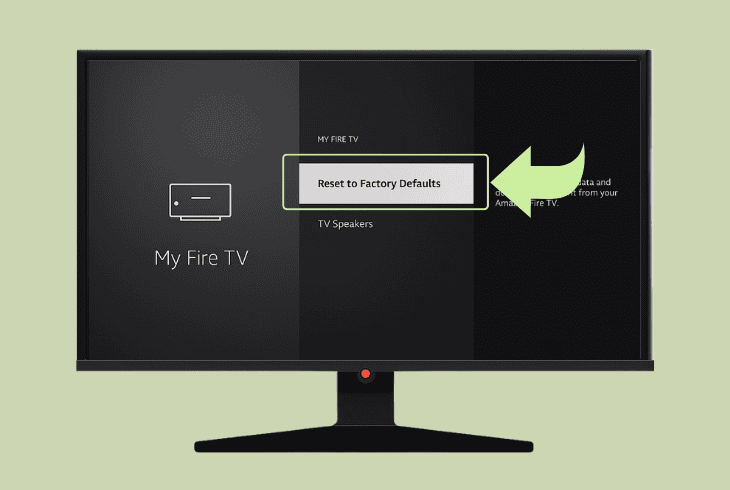
One of the final things you can attempt is to factory reset the Insignia Fire TV, which will reinstall the operating system and resolve all bugs along the way.
However, the factory reset will erase all your downloaded apps, custom settings, remembered Wi-Fi, Bluetooth Devices, and so on…
Well, this process can easily help you with the persistent Insignia Fire TV no sound problem.
However, if there is anything you would like to recover, make screenshots!
Here’s how to factory reset Insignia Fire TV:
- From the main TV menu, navigate to the “Settings”.
- Select “My Fire TV” → “Reset to Factory Defaults”.
- Choose to continue and confirm the factory reset.
When the Insignia Fire TV restarts, the first sounds you will hear are the popping and clicking noises from moving through the menus.
If you still have no sounds, it’s probably a HW defect.
📍Note: If you’re suspecting a HW defect with your Insignia Fire TV, try to claim your warranty or get in touch with Insignia tvs Customer Service.
Finn Wheatley, a Master’s graduate in Computer Science from UCL, London, honed his skills at small data science consultancies. There, he helped large corporations enhance their data capabilities by deploying cutting-edge machine learning analytics and resolving technical hurdles.


