Hulu Video Quality Settings: Make Streams Crystal Clear!

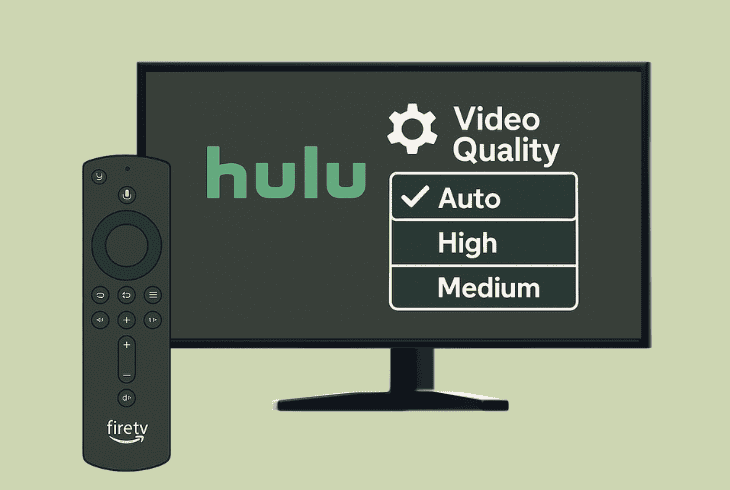
If you’re looking to understand exactly how Hulu video quality settings work and how to get the best of your streaming experience, you’re at the right place.
This quick guide will walk you through Hulu’s quality settings, answer some of your burning questions, and provide you with ways to boost your Hulu quality.
Let’s get started with the most important first…
Hulu Video Quality Settings & How They Work?
Hulu’s video library is available in various HD qualities, including 720p, 1080p, 4K, and Ultra HD, some of which are even available at 60 Frames Per Second (FPS).
The thing is that you can’t manually change and choose specific resolutions.
Hulu offers only two options, whether you’re on PC, web, or a smart TV:
You’re probably starting to get it by now!
While there is no manual way to increase or decrease the streaming quality, improving your internet connection is a guaranteed way to get the best quality.
Changing Quality On Hulu
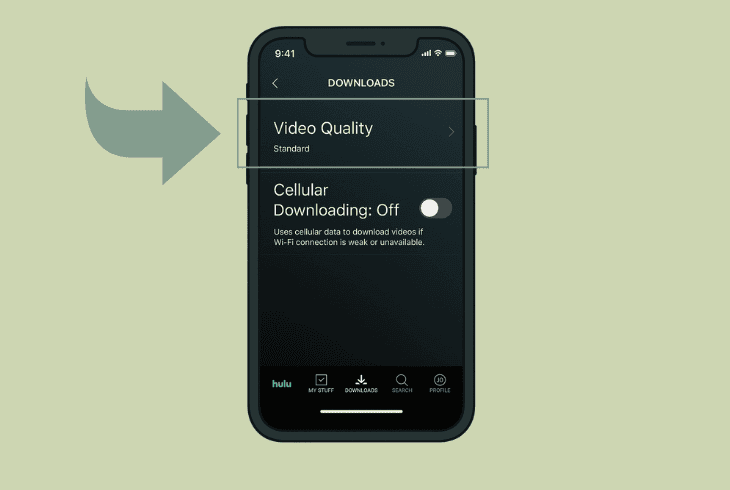
You can change between “Data Saver” and “Best Available”, whether you’re on a web browser or a smartphone, in the following way:
If you’re looking to achieve the best streaming quality, of course, go with the “Best Available” option as per the strength of your internet.
How to Get Better Quality
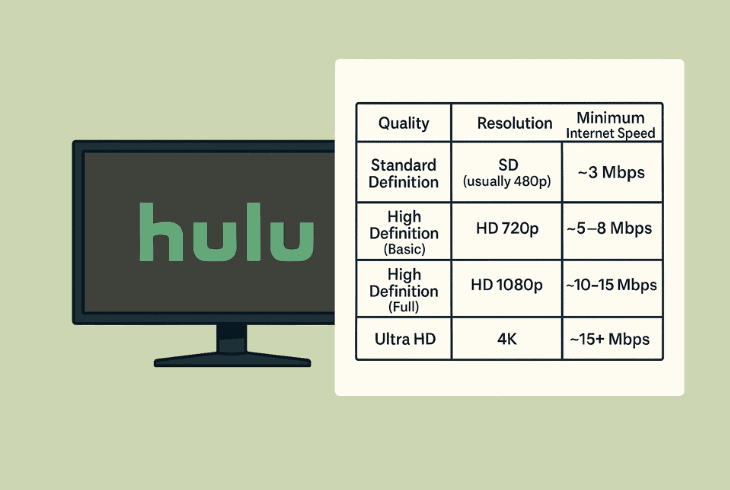
As mentioned, the only way to get better quality via the “Best Available” option is to improve your internet speed.
So, here is a quick breakdown of the internet speed you need to achieve the following resolutions in the Hulu streaming application:
| Quality | Resolution | Minimum Internet Speed |
| Standard Definition | SD (usually 480p) | ~3 Mbps |
| High Definition (Basic) | HD 720p | ~5–8 Mbps |
| High Definition (Full) | HD 1080p | ~10–15 Mbps |
| Ultra HD | 4K | ~15+ Mbps |
As shown in the table, this is the internet speed you need for Hulu to automatically change your video quality to better or worse.
So, to be able to display 4K quality while streaming, your device must get ~15 Mbps of internet speed consistently.
How to Test Internet Speed?
To test your internet speed, you can pretty much use any free tool from the web and look at the download speed result.
Anything below 5 Mbps will guarantee that you’ll only get SD quality, which is jittery and doesn’t look good, especially on TVs.
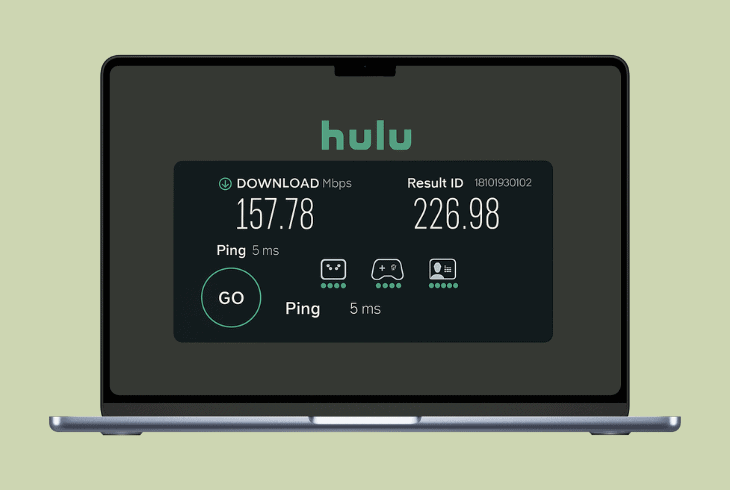
However, it’s important to note that you must perform the speed test on the device that you are using to watch Hulu.
If you’re doing the test on your PC, for example, this doesn’t guarantee that your smart TV gets the same speed over Wi-Fi.
💡Quick Tip: To test the speed your streaming device acquires, you can use your phone to connect to the same Wi-Fi and stand right next to it while testing.
Hulu Video Settings | Streaming Library Compatibility
Another factor that can prevent Hulu from providing you with the highest quality possible is your streaming device, even if your internet is blazing.
For example, if your device does not support 4K resolution, the Hulu app will just go with the highest supported quality.
This goes for all smart TVs, computer monitors, and smartphones.
Hulu Live TV Quality
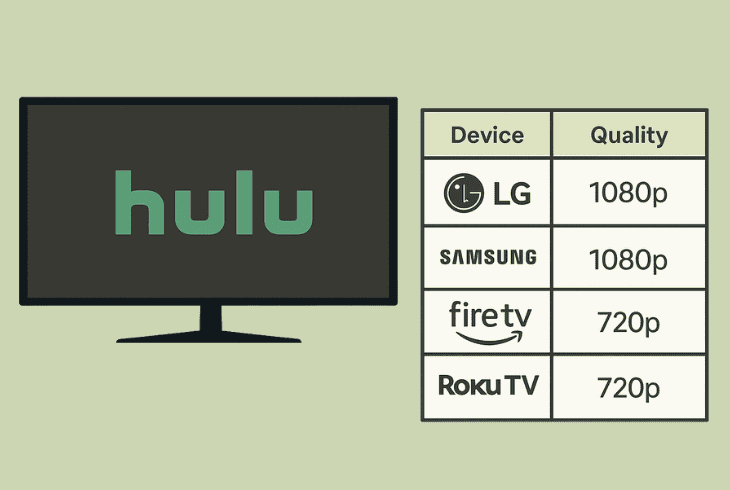
If you’re viewing Live TV within the Hulu app, sadly, you can’t get 4K resolution as it’s not even supported by this library segment.
Here’s a breakdown of the quality you can get on Live TV with different devices when streaming Hulu:
| Resolution | Supported Devices |
720p at 60 FPS | Android TVs and Android phones/tablets Apple TV models Chrome browser (latest versions) ChromecastFire TV and Firestick Fire Tablets (Gen 4 and newer) iPhones and iPads LG Smart TVs with webOS 3.0 or newer Nintendo Switch PlayStation 4 Compatible Roku models Samsung Smart TVs (various models) Vizio TVs with SmartCast |
1080p at 60 FPS | Apple TV (4th gen and up) Chromecast Fire TV and Firestick PlayStation 4 PlayStation 5-Select Samsung Smart TVs Xbox One |
As you can see, now ALL devices can display 1080p on Hulu Live TV.
Hulu With 4K Ultra HD
Image 6
If your internet supports up to ~15 Mbps or more, by going to the Hulu 4K Ultra HD library, you will reveal contents that stream in 4K resolution.
If your device supports it, you’re good to go:
Hulu With HDR
Image 7
If you head to the HDR library segment, you’ll discover the High Dynamic Range content, which offers higher variations in the light levels than normal.
This creates a stunning video quality, so if your device supports HDR, then you’re good to go:
Hence, if your device is HDR enabled, you can view HDR10, HDR10+, and even Dolby Vision!
Hulu Quality Settings – FAQ
❓Why can’t I change Hulu resolution manually?

The Hulu app handles video quality automatically based on your internet speed and the device’s supported quality.
You can only switch between two settings, which are “Best Available” and “Data Saver and If you want better quality, choose “Best Available”.
❓Why is my Hulu stream so blurry?
Your Hulu streaming quality could be low and blurry when your internet is slow or unstable, so first, make sure that you’re using the “Best Available”.
If the blurriness is still there, just test the internet speed and troubleshoot Wi-Fi drawbacks.
❓How do I know if I’m watching in 4K or HDR?
Unfortunately, Hulu does not show whether you’re viewing 4K or HDR on the screen, so you must trust the device you’ve got.
If the device is 4K-enabled and supports HDR, if you are watching something from the 4K or HDR library, then you’ve got it.
Finn Wheatley, a Master’s graduate in Computer Science from UCL, London, honed his skills at small data science consultancies. There, he helped large corporations enhance their data capabilities by deploying cutting-edge machine learning analytics and resolving technical hurdles.