Hulu Keeps Going Black On Smart TV? (Stop It Now!)

You are all set for a night of relaxing, when suddenly, Hulu keeps going black on smart TV, turning your evening into a troubleshooting nightmare.
If you’ve already tried a reboot and a power cycle, then you are in for a treat–our solutions are far from common, so let’s get into it and fix the issue.
What to Do When Hulu Keeps Going Black On Smart TV?
💡Tip: Before troubleshooting, unplug your TV for at least 30 seconds to check if the issue persists.
1. Verify the Smart TV’s Internet Connection
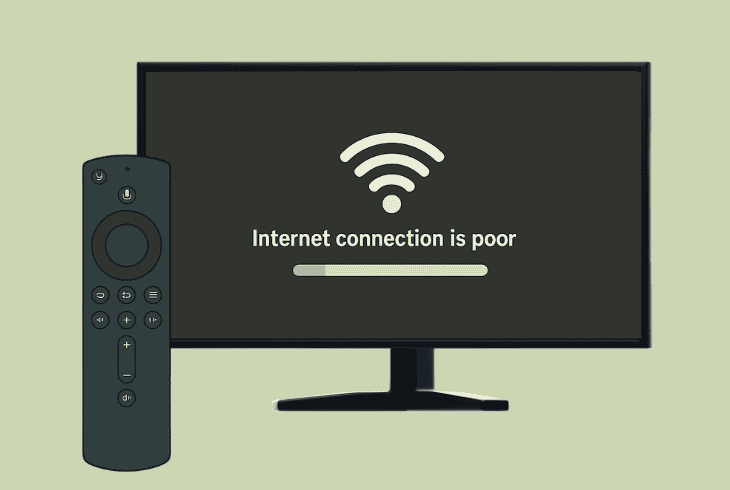
The “black screen of death” often means one of two things:
The first step is to verify that your smart TV’s connection to the internet is secure, whether it is a wireless (Wi-Fi) or wired (Ethernet) connection.
Hulu has strictly defined internet requirements (Mbps) to work properly and not cause any interruptions.
Based on whether you use Wi-Fi or Ethernet, proceed with the appropriate steps!
1.1 How to Inspect Wi-Fi Connection On a Smart TV:
First, access the “Settings” and navigate to “Wi-Fi” or “Wireless”.
Then, check if your smart TV displays the current network connection status, or reconnect the device to the internet.
ZontSound also recommends testing the Wi-Fi connection quality on other devices paired to the network.
This way, you can diagnose the issue and narrow down the potential causes.
1.2 How to Inspect Ethernet Connection On a Smart TV:
So, if using a wired Ethernet connection for your smart TV, the first step is to check if the device detects the LAN connection through the “Settings” → “Internet Status” tab.
If the Ethernet is not detected by the smart TV at all, reconnect the cable on both ends and test the connection.
💡Tip: If using Ethernet, try connecting the cable into a different input on the router and the TV, if there are several LAN ports.
2. Clear the Cache of the Hulu Application
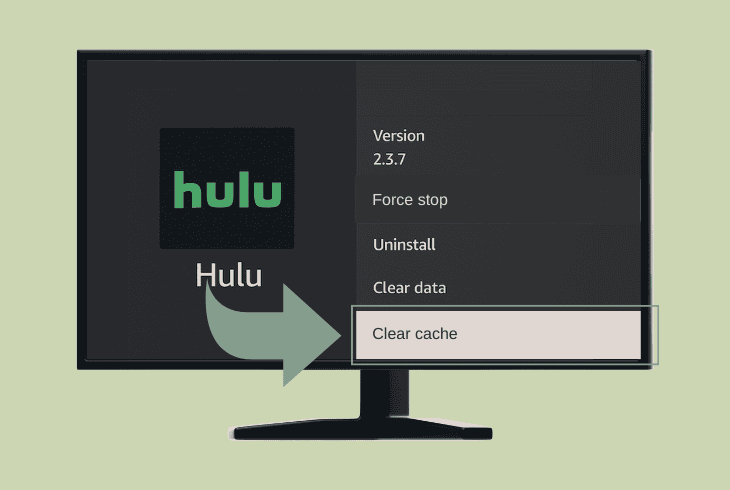
Before advancing to any more in-depth solution, our next recommendation is to ensure the generated excess cache files of the Hulu app are cleared.
So, we have prepared a thorough guide to clear Hulu’s cache for the 6 most popular TV brands:
| Steps to Clear Hulu Cache: | |
| Samsung (Tizen) | Home → Settings → Support → Device Care → Manage Storage → Hulu → View Details → Clear Cache |
| LG (webOS) | Home → Settings → All Settings → General → System → Application Manager → Hulu → Clear Cache (or reinstall) |
| Sony (Android/Google) | Settings → Apps → See all apps → Hulu → Clear Cache → (Optional) Clear Data |
| TCL (Roku TV) | Press Home 5x → Up → Rewind 2x → Fast Forward 2x → Wait for reboot (this clears system-wide cache) |
| Vizio (SmartCast) | Menu → System → Reset & Admin → Soft Power Cycle → (Optional) Uninstall/Reinstall Hulu (no direct cache option) |
| Hisense (Android) | Settings → Apps → See all apps → Hulu → Clear Cache → (Optional) Clear Data |
⚠️Important: Clear the cache of Hulu at least once every 2–3 weeks to maintain proper performance.
3. Access Hulu Through a Different Profile
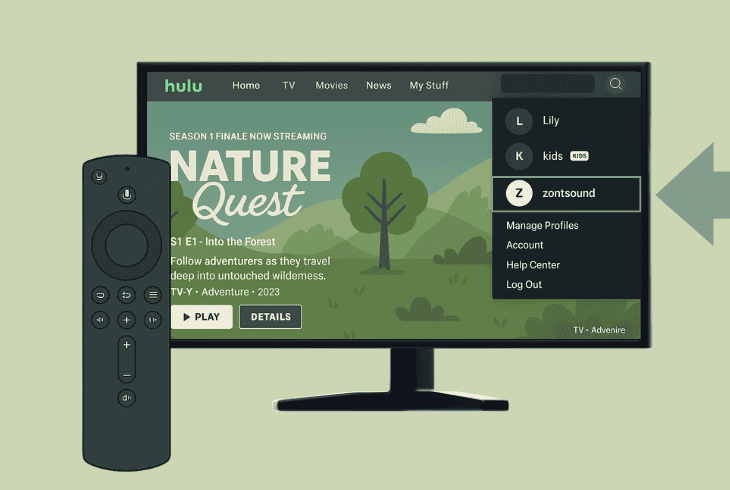
Well, registering a temporary profile is a quick way to test if the Hulu black screen on TV is account-related.
The best thing is that you don’t have to subscribe to any of Hulu’s services to test the platform’s functionality through the temporary account.
So, in that regard, navigate to the official Hulu registration page, input a temporary email or one that you don’t use frequently, and complete the first-time account setup.
Once your email has been verified, just sign in to Hulu through your TV and determine if the display will turn black shortly afterwards.
4. Troubleshoot Issues with the HDMI (Third-Party Device)
If using a third-party device, such as a Firestick or Roku, to stream Hulu on your smart TV, then the problem could be with the HDMI connection.
So, the next step is to diagnose potential issues with the audio/video HDMI connection between your TV and the third-party device.
Tip #1: Try HDMI Handshake:

First, unplug the HDMI cable from both ends and shake the ends of each connector for several seconds.
This helps “refresh” the signal and can potentially realign bent connectors that disrupt the video/audio broadcast and result in a black screen.
Tip #2: Swap the HDMI Ports:
Plug the HDMI cable into a different port on both the TV and the third-party device.
Reconfigure the input settings through the TV and the external device’s menu, then test the functionality of the Hulu application.
Tip #3: Reset the HDMI-CEC:
If the issue persists, try reactivating the HDMI-CEC feature in the video options of your TV.
It is available on most popular smart TV models, and you shouldn’t have a hard time locating it in the settings, but if you can’t, consult the user manual or check online.
5. Turn off “Auto-Motion Plus” or “Smooth Motion” (Samsung & LG)
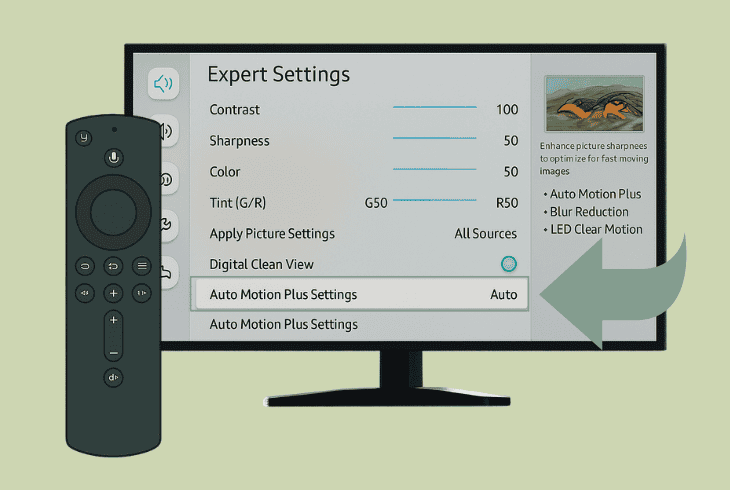
The “Auto-Motion Plus” on Samsung and the “Smooth Motion” feature on LG have a similar functionality, which contributes to a higher broadcast quality by partially blurring movements.
However, streaming a very high-quality or unsupported Hulu content with this functionality might result in crashes of the app, extensive buffering, and even a black screen at a certain point.
5.1 How to Disable “Auto-Motion Plus” On Samsung:
- Access the “Settings” tab and navigate to “Picture”.
- Head to the “Expert Settings” tab from the options.
- Now, enter either of these tabs, based on the TV OS:
- Select the activation slider and press “OK” to turn off.
5.2 How to Disable “Smooth Motion” On LG:

- Go to “Settings” and enter the “All Settings” tab.
- Go to “Picture Settings” → “Advanced Settings”.
- Locate the “Clarity” option from the options below.
- Now, highlight and disable the “TruMotion” option.
Now, ZontSound recommends clearing the Hulu app’s cache again following the instructions in solution #2 and power off your TV for at least 30–40 seconds.
Then, reboot the TV OS and test the streaming functionality of the Hulu application.
6. Boot the TV in “Developer” Mode (Samsung TV)
Users who had experienced the black screen Hulu problem on a Samsung TV reported that activating the “Developer” mode resolved the issue.
So, this would be especially helpful if the problem is permissions-related or has something to do with visual bugs or the TV settings.
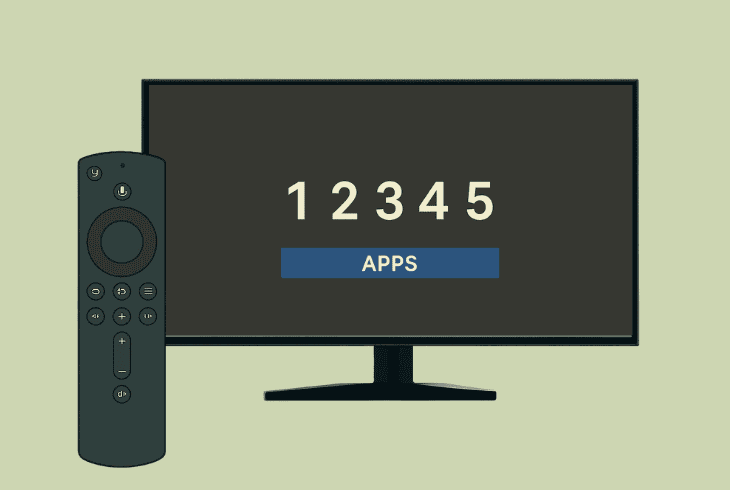
Follow these steps to start your Samsung TV in “Developer”:
- Press the “Home” button on the Samsung TV remote.
- Head to the “Apps” menu from the bottom-right corner.
- Press “1-2-3-4-5” in this order on the remote’s keypad.
- Choose “Enable Developer” mode from the menu tab.
- Reboot the Samsung TV and test the Hulu application.
Whilst in “Developer” mode, most of the Samsung TV’s functions will be disabled.
In order to return to normal, you must power off the TV and unplug the power cable for ~30–40 seconds.
7. Verify that the Hulu App is Up-to-Date
If nothing helps with the black screen, then the Hulu app might be simply outdated.
That’s why, before attempting irreversible solutions, our recommendation is to check the Hulu application for a newer firmware version through the content store on your TV device.
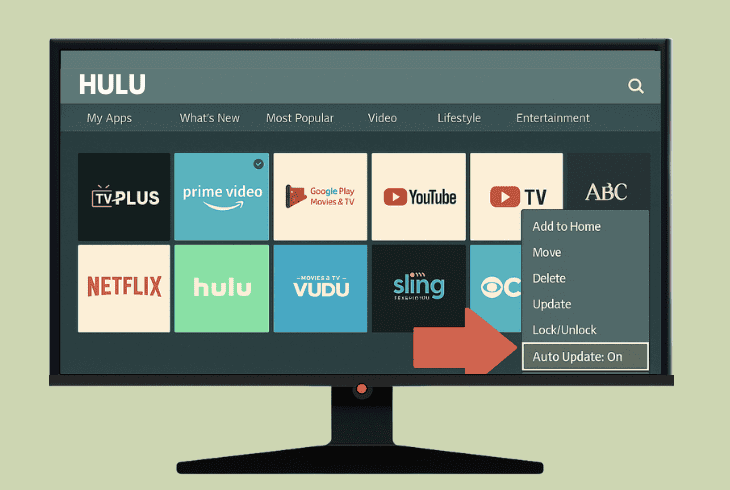
Follow these steps to update the Hulu app on most TVs:
- Navigate to the homepage of your TV device.
- Now, open the integrated Applications store.
- Next, find Hulu in the “Installed Apps” section.
- Check if there is a newer Hulu firmware version.
If you cannot find the installed applications in the content store, then navigate to the “Apps” or “Storage” tab in the settings.
Once you have found the Hulu app, check if there is a functionality that allows you to validate the firmware version and follow the on-screen instructions.
💡Note: In order to update apps on your TV, the internet connection must be stable.
8. Temporarily Set your TV to “Game” Mode

Some users had success bypassing the black screen error in the Hulu app by adjusting their TV to “Game” mode.
When activated, the game mode (if it is available on your TV) lowers the video quality settings and stabilizes the frame rate and resolution, which may cause the black screen.
So, access the “Settings” app on your TV, and go to the “Display” or “Video” tab.
Check if there is a picture mode menu or just “Mode” and specify “Game” or “Gaming” from the options.
📍Note: When you’re done, reboot the smart TV for the changes to take effect and test the functionality of the Hulu application.
9. Cleanly Reinstall Hulu On your TV
In case Hulu keeps going black on smart TV after attempting all of the solutions we have recommended, our final recommendation is a clean reinstallation of Hulu.
There could be an issue with the data or even the JSON structure of the app, which has led to the black screen.
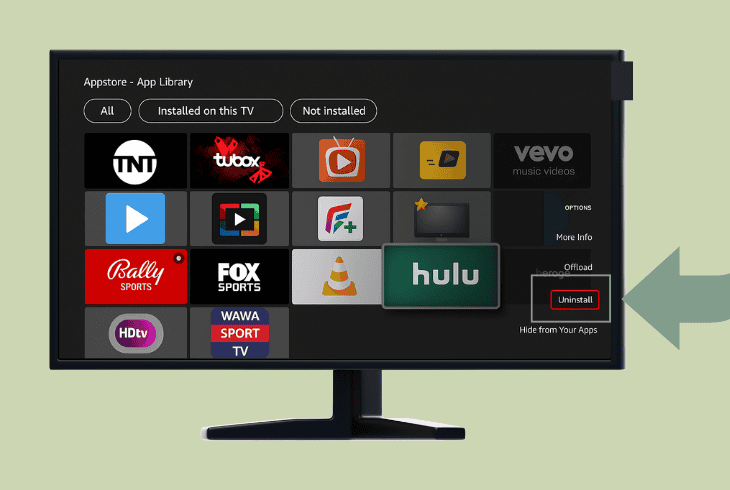
- To uninstall apps on most popular smart TVs, go to “Apps” or “Storage”, find Hulu, and select “Uninstall” or “Remove app” from the settings.
⚠️Warning: Contact Hulu customer support if the black screen is still there.
Finn Wheatley, a Master’s graduate in Computer Science from UCL, London, honed his skills at small data science consultancies. There, he helped large corporations enhance their data capabilities by deploying cutting-edge machine learning analytics and resolving technical hurdles.