Is Hulu Crashing On Roku? (Here’s How to Fix It!)

We understand how frustrating it must be when Hulu crashing on Roku, ruining your entire evening, movie night, or family time.
The issue could be associated with something simple, such as a weak internet connection, or be related to the Hulu cached data, or even your router settings.
Whatever it is, we’ll get it fixed, so let’s get into it.
10 Ways To Fix When Hulu Crashing On Roku Constantly?
📍Note: Have you tried force-closing the Hulu application on your Roku device?
1. Perform a Memory Clear on the Roku
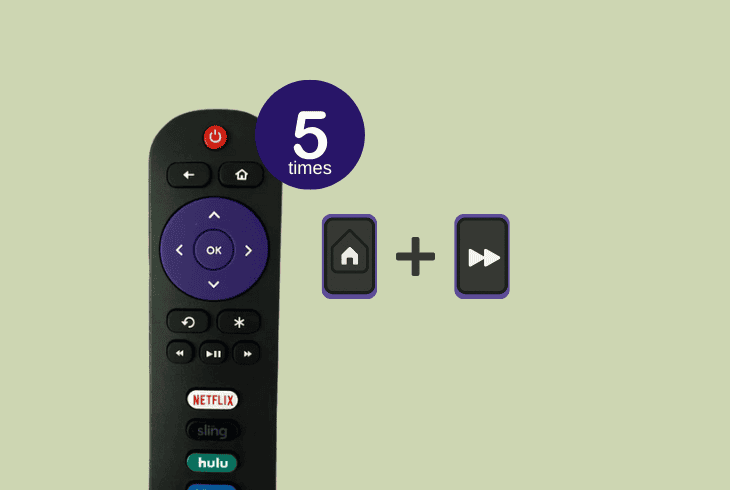
Perhaps, the problem is caused by an underlying issue with the Roku device’s internal memory, which led to the persistent crashes of the Hulu application.
Hence, the very first step would be to manually clear the memory cache of your Roku device by using a remote key combination.
Press the following keys on the Roku remote in the given order:
- Press the “Home” button on the remote 5 times
- Press the “Rewind” button once after 2 seconds.
- Press the “Fast Forward” button twice to initiate.
The Roku device will turn off in less than 15 seconds and begin to erase the temporary memory cache.
The first initiation sign will be rapid cycling through the options menu, and once you see your Roku device doing that, stop all interactions until the memory cache process is complete.
2. Change Roku Audio Format (Temporarily)
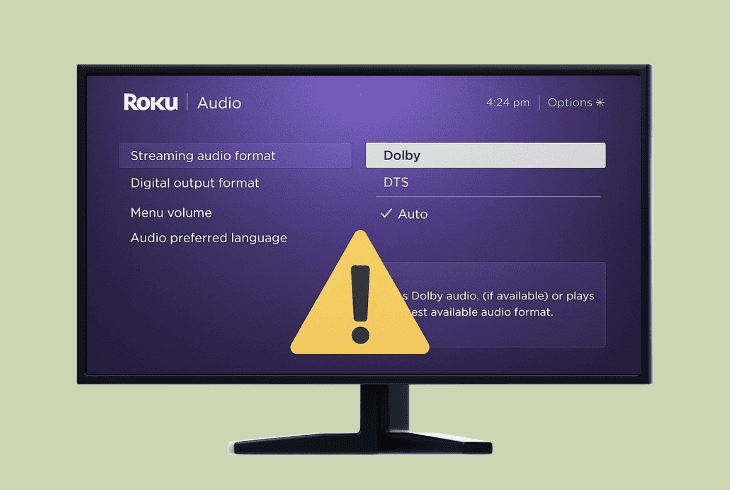
Even if it may sound unlikely, the Hulu application might crash due to an incompatible audio format.
The platform’s audio preference must properly synchronize with the one specified in the settings of your TV, and discrepancies could lead to persistent crashing without any error codes.
Here’s how to change the Roku Digital Audio Output Format:
- Access the Roku settings menu and go to “Audio”.
- Extend the “Digital output format” section menu.
- Set the Roku device to “Digital”, “DTS”, or “Auto”.
If the Roku device was already set to “Auto” by the time you accessed the menu, test on “Digital” and “DTS” instead.
Make sure to register the changes and soft reboot the Roku before testing the Hulu application.
💡Tip: Verify that the selected output audio device in both the TV and Roku settings menus is identical.
3. Check for Updates of the Hulu Channel
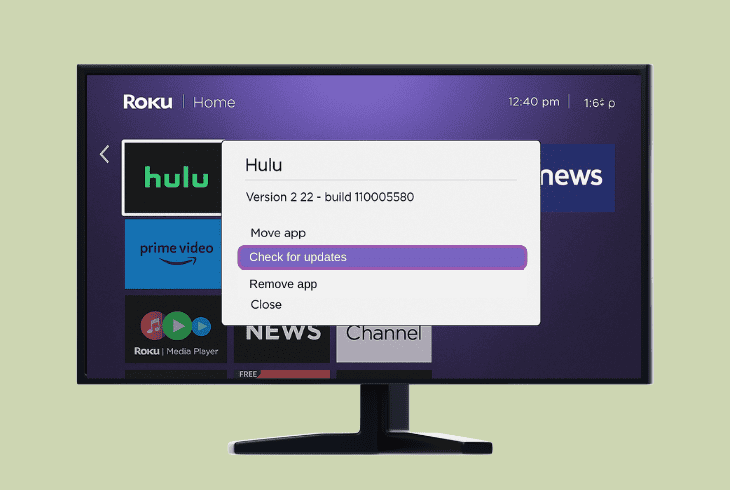
One of the primary reasons why Hulu keeps crashing on Roku is because of an outdated–you guessed it–firmware version.
So, before advancing to more advanced solutions, ZontSound recommends verifying that the Hulu application is up-to-date on your Roku streaming device.
Follow these simple steps to update the Hulu application:
- Highlight the Hulu application on the Home page of the Roku.
- Now, press the star (*) button on the Roku remote control.
- Scroll down to “Check for Updates”, select and press “OK”.
- Wait until the Roku device conducts an automatic OS check.
If there is a newer firmware version available for the Hulu application, the update procedure will begin automatically.
Same as with the cache clear, do not interact with the player before the update has finished uploading completely, and you have rebooted the player.
⚠️Notice: Verify the Roku player is connected to a stable Wi-Fi/Ethernet network before updating!
4. Reorder the Roku Channel Positions
An untraditional, yet quite effective solution is to reorder all the installed channels on your Roku.
Heavier and more demanding installed channels, such as YouTube or Netflix, might conflict with the Hulu application due to UI cache conflicts, according to their adjacent channel positioning.

It sounds unlikely to help, but try this out!
To reorder the channel placement in your Roku UI, highlight either of the channels, press the star button, and start dragging the selected icon.
We recommend positioning the Hulu app at the very first place of the channel list and moving the demanding apps several spots away.
5. Switch the Roku to Another Wi-Fi Thread
The problem with the persistent crashes of the Hulu application might be due to a problem with the internet connection.
Hence, before rebooting your router or managing any of your network settings, we advise switching the Roku to a different Wi-Fi band if you have a dual-band router.
Here’s how to change the Roku player’s Wi-Fi selection easily:
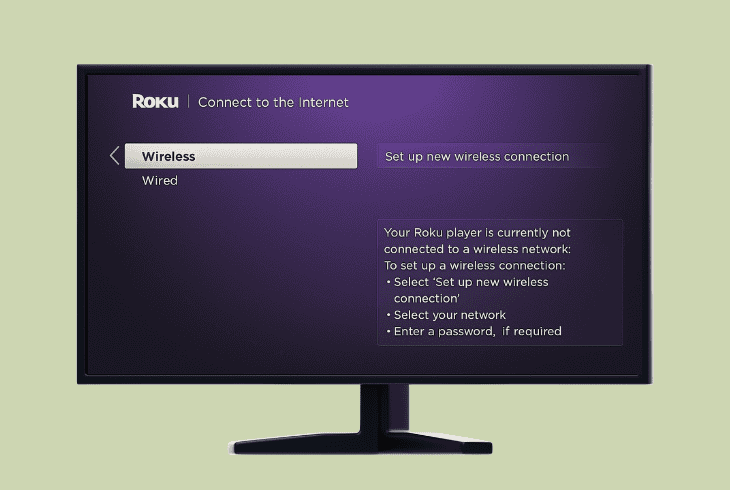
- Navigate to the “Settings” on your Roku player.
- Now, access the “Network” tab from the options.
- Highlight “Set up connection”, then “Wireless”.
- Wait until the Roku scans all available networks.
- Now, select the secondary Wi-Fi of your network.
- Input the Wi-Fi password and press “Connect”.
- Wait until the Roku establishes the connection.
If the Roku has paired successfully to your Wi-Fi network, you will see a confirmation message appear on the display.
Also, soft-reset the Roku player and launch the Hulu application to test.
6. Diagnose Issues with the Network
Whether you use a wired or wireless connection, the Hulu on Roku keeps crashing issue is almost certainly caused by an improper connection.
If changing the Wi-Fi thread did not have any effect, we recommend conducting a thorough troubleshooting of your network equipment.
Let’s start with the simplest–a router reboot!
#1 – Power Reset the Network Router:
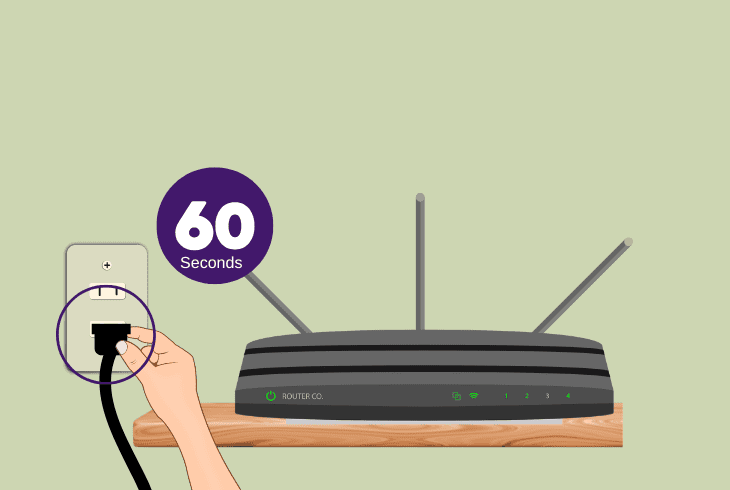
The power reset is an advanced way of rebooting any electrical appliance, including the network router.
All you have to do is unplug the power cable for ~60 seconds, until the power drains.
#2 – Temporarily Disrupt the Router Service:
Since we are not yet certain whether the problem is with your own network installation or the ISP, we recommend suspending the service of the network router for ~4–5 minutes.
#3 – Reduce the Overall Network Usage:
So, the next step is to reduce the bandwidth usage of your network as much as possible, by temporarily suspending high-data processes (downloading/uploading) and unpairing devices.
⚠️Warning: Get in touch with your ISP if other devices are losing connection as well.
7. Check for Updates of the Roku OS
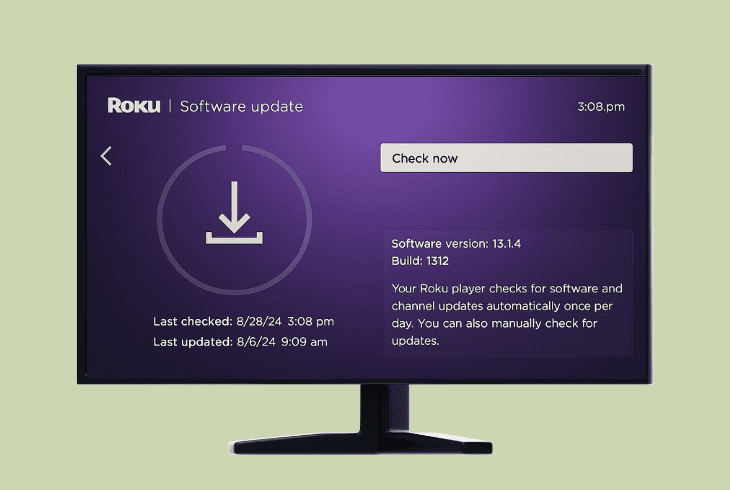
Perhaps, an outdated and incompatible version of the Roku firmware might be conflicting with Hulu, causing it to crash.
So, to check for a more recent version, go to “Settings” → “System” → “System update” and press the “Check Now” button.
Now, your Roku player will begin to automatically search for a newer firmware (as long as it is connected to the internet), and show the results on-screen, allowing you to start the update.
8. Cleanly Reinstall the Hulu Roku Channel
If the issue persists, the reinstallation is one of the most reliable solutions you can attempt if nothing else so far has worked.
A clean reinstallation of the channel will erase all configured settings and potentially eliminate underlying problems that are causing the service to crash.
8.1 – How to Uninstall Hulu On Roku:
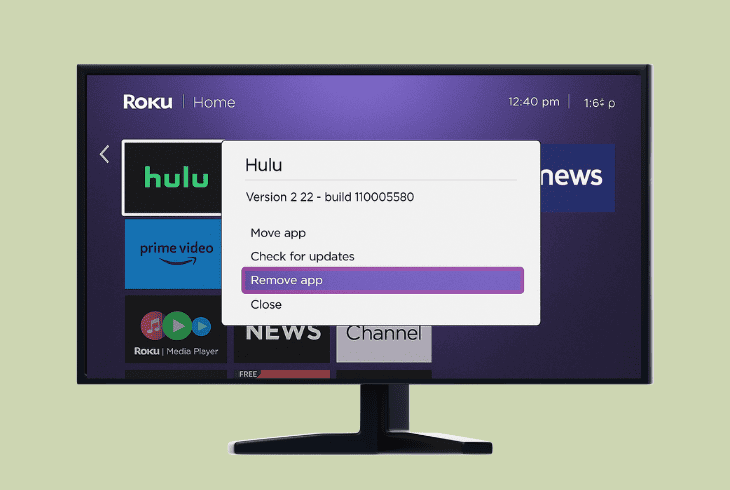
- Highlight the Hulu channel on the Roku homepage.
- Press the star button on the Roku remote control.
- Now, press “Remove Channel” from the side menu.
- Select “Remove” again to confirm the uninstallation.
- Wait until the Hulu channel is successfully removed.
8.2 – How to Reinstall Hulu On Roku:
- Access the Roku home screen and go to “Streaming Channels”.
- Find the Hulu channel in the recents list to start the installation.
- Highlight the app and press on the “Add channel” button below.
Now, re-enter your login credentials as they will be remembered after the reinstallation, and check if the channel still crashes.
In case it does, there could be a more severe network issue…
9. Configure Settings in the Router GUI
If the issue persists, ZontSound recommends applying adjustments to the GUI settings of the network router.
In order to access and configure these settings, you must enter the web interface, accessible via the router’s default gateway IP address.
Let’s review the steps of accessing the router GUI:
Step #1: Find the Router Default Gateway:
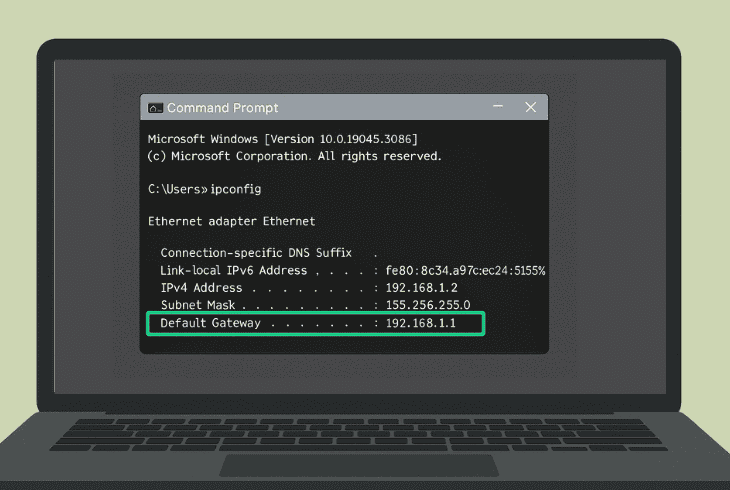
The default gateway of your network router can be acquired in one of two ways:
Alternatively, you can try to access the router settings straightforwardly from this link or this link!
Step #2: Gain Access to the Web GUI:
Now, connect a device over Wi-Fi or Ethernet to your network router and open a web browser.
Paste the default gateway value in the search field of the browser and press “Enter.” Now, use “admin/admin” or “admin/password” to access the GUI of the network router.
Step #3: Configure the Router Settings:
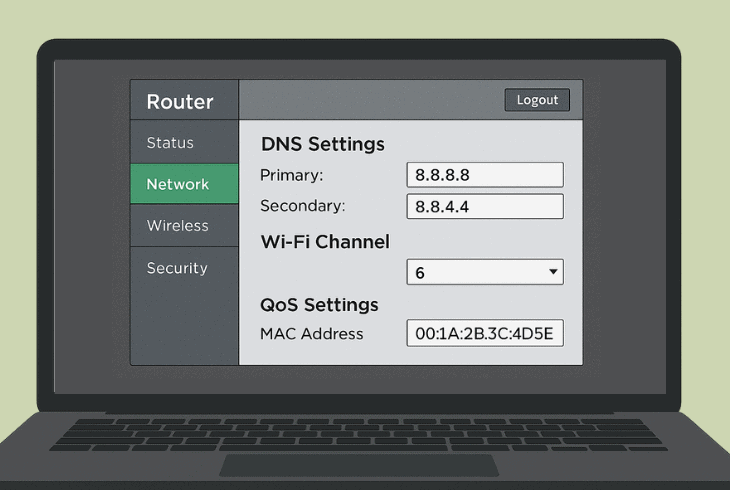
Now, navigate to the “Network” tab and adjust the following settings:
⚠️Warning: The network router must reboot after registering each setting adjustment.
10. Reset the Roku Player to Defaults
To permanently stop the Hulu crashing on Roku, a factory reset might be the best solution.
However, all of your Roku player’s data will be erased, including all the channels and settings.
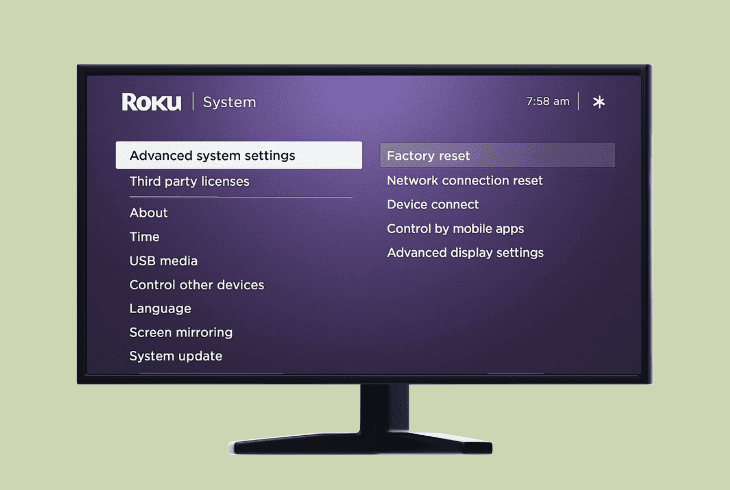
Here’s how to factory reset the Roku player in easy steps:
- Go to “Settings” on your Roku, then open “System”.
- Head to “Advanced system settings” in the menu.
- Select “Factory reset” from the on-screen options.
- Confirm the reset and wait until the player has reset.
⚠️Warning: Cease all interactions with the Roku player while the reset is still ongoing. Consider getting in touch with Roku customer support if the issue persists.
Finn Wheatley, a Master’s graduate in Computer Science from UCL, London, honed his skills at small data science consultancies. There, he helped large corporations enhance their data capabilities by deploying cutting-edge machine learning analytics and resolving technical hurdles.