

DIRECTV Genie Remote Not Working? (Fix It Fast!)

We understand the frustration when your DIRECTV Genie remote not working, especially if you have already tried replacing the batteries.
Don’t worry–in most cases, this doesn’t necessarily mean a lethal defect with the remote, so in this quick guide, we’ll walk you through everything.
Let’s start with the most important first…
DIRECTV Receiver Compatibility – IR or RF
The most important step before troubleshooting your DIRECTV Genie remote is to identify the type of your DIRECTV receiver.
This is crucial because Genie remotes can both function in RF (Radio Frequency) or IR (Infrared) signals.
The thing is that you can change the signal mode of your remote, and for receivers that only work with IR, if your remote is in RF mode, it won’t work.
Let’s identify your receiver capabilities!
| DIRECTV Receiver | IR Support | RF Support |
| Genie HD DVR (HR34, HR44, HR54, HS17) | ✅ | ✅ |
| Genie Mini (C31, C41, C51, C61) | ✅ | ✅ |
| H24, H25 (HD receivers) | ✅ | ✅ |
| HR24 (HD DVR) | ✅ | ✅ |
| H21, H23 (older HD receivers) | ✅ | ❌ |
| HR21, HR22, HR23 (older HD DVRs) | ✅ | ❌ |
| R15, R16, R22 (SD DVRs) | ✅ | ❌ |
| D10, D11, D12 (SD receivers) | ✅ | ❌ |
⚠️Important: DIRECTV receivers that support both IR and RF would work regardless of your Genie remote signal mode, while IR-only receivers won’t work in RF remote signal mode.
DIRECTV Genie Remote Not Working – 8 Guaranteed Methods!
⚠️Important: It’s crucial to ensure that your DIRECTV is responsive and not frozen!
1. Change the Genie Remote Mode
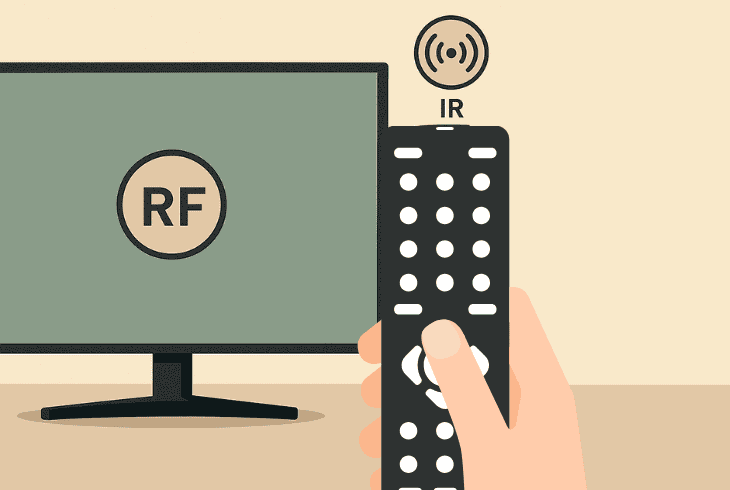
As mentioned, it’s critical to check the type of your DIRECTV receiver and whether your device supports IR and RF or only IR signals.
Based on your findings, you need to change the mode of your Genie remote to be able to interact with it.
How to Switch Genie to RF Mode
If you have a DIRECTV receiver that supports an RF signal (e.g., HD DVR, Genie Mini, H24, H25, or HR24), you can enable and use RF mode.
This mode allows you to control the receiver through solid obstructions with a wireless frequency.
Method #1 – Quick Pairing
- Point the Genie remote at your receiver.
- Then, hold the MUTE + ENTER buttons.
- You should see “Applying IR/RF setup”.
Method #2 – Manual Pairing
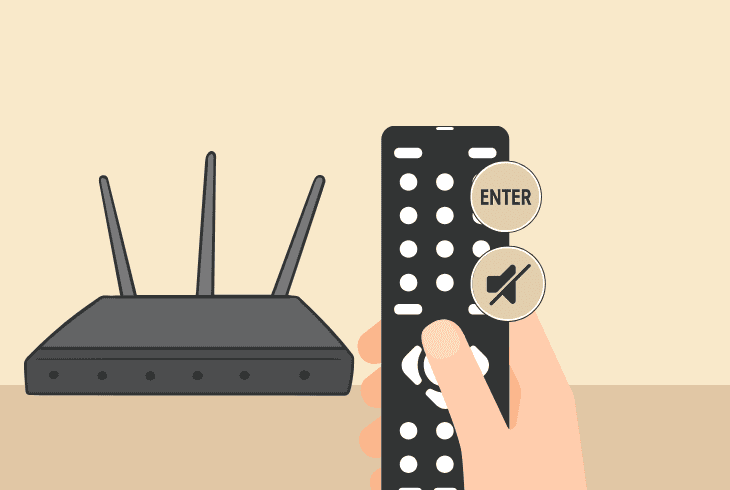
- Point the Genie remote at your receiver.
- Then, hold the MUTE + ENTER buttons.
- The green light on the remote must blink.
- Then, insert this key combination: 9–6–1.
- Press CHANNEL UP and ENTER once.
How to Switch Genie to IR Mode
If your Genie remote is not working on an old DIRECTV receiver (e.g., H21, H23, HR21, HR22, HR23, R15, R16, R22, D10, D11, D12), you’ll need to switch to IR mode.
Those receivers do not support RF signal, so if your remote is in RF mode, it won’t be able to interact with the receiver.
Here’s how to switch the Genie remote to IR mode:
- Point the Genie remote at your receiver.
- Next, hold the MUTE + SELECT buttons.
- Then, insert this key combination: 9–6–1.
- Press CHANNEL DOWN and ENTER once.
Note: If none of the methods work, instead of “ENTER”, try using the “DASH (–)” button!
2. Replace the Remote Batteries
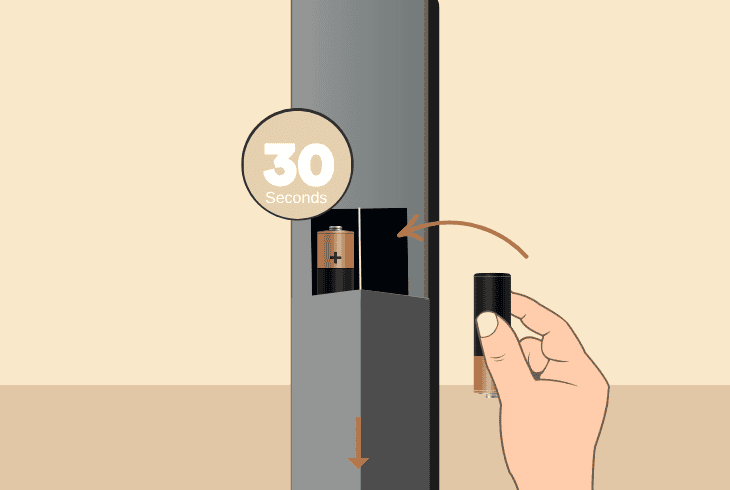
Before we continue with more advanced troubleshooting, we recommend changing the remote batteries, especially if you can’t even switch between the modes.
The DIRECTV Genie remotes use 2 AA batteries, and we strongly recommend using only reputable brands such as Duracell.
How to Test Battery Strength?
To test the strength of the Genie remote batteries, you need to press any button continuously and then watch the remote control LED indication:
- A solid green light: Your batteries are good, and the signal strength is strong.
- Fast-blinking green: The batteries are fairly okay, but they are soon going low.
- Slow blinking/no light: The batteries are very low, or they are completely dead.
Quick Tip: If you don’t have a replacement (fresh set of batteries), use a set of proven-to-work batteries from a different remote or appliance in your home temporarily.
3. Reset and Re-Pair your Remote
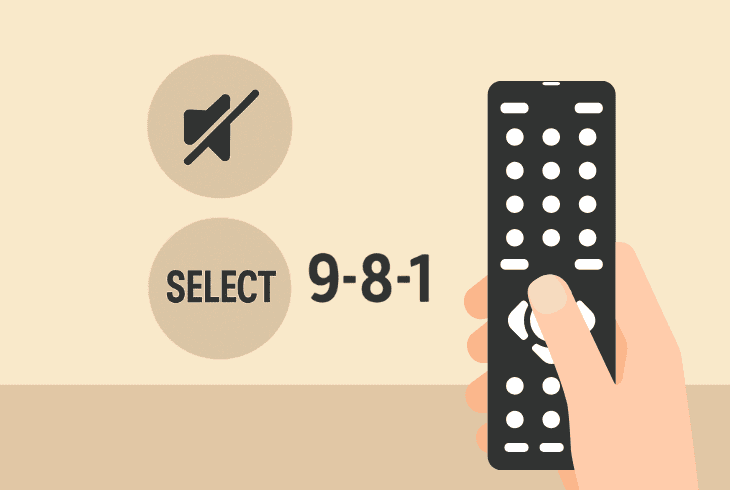
If your DIRECTV Genie remote is not working with receiver, it may not be paired at all, so we’re going to combine the two methods into one go.
We are going to reset the remote control and then pair it to the DIRECTV receiver, which should help you and resolve your problem instantly.
How to Reset Genie Remote:
- Press and hold the MUTE + SELECT buttons.
- Wait until the remote light flashes three times.
- Insert a key combination 9–8–1 and SELECT.
- Your remote should flash four times and reset.
How to Pair a Genie Remote:
- Point your remote control at your DIRECTV receiver.
- Press the MUTE and ENTER buttons simultaneously.
- The receiver should display “Applying IR/RF Setup”.
Quick Tip: Now you can try changing the remote mode (reference in step #1) to match the signal mode that your DIRECTV receiver supports.
4. Disable the HDMI-CEC on your TV
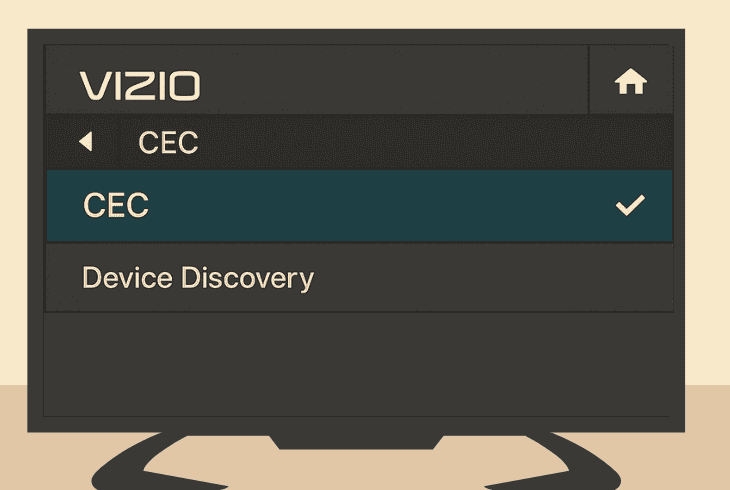
The HDMI-CEC (Consumer Electronics Control) on your HDMI-connected TV is another reason why the DIRECTV Genie remote would stop working.
This feature allows you to control HDMI devices by using one signal remote control, but it often interferes with your setup and causes more harm than good.
So, we have prepared a thorough guide for disabling the feature on some of the most popular television brands, so let’s try it out.
| Samsung | Anynet+ | Home → Settings → General → External Device Manager → Anynet+ (HDMI-CEC) |
| LG | SIMPLINK | Settings → All Settings → General → Devices → HDMI Settings → SIMPLINK (HDMI-CEC) |
| Sony | BRAVIA Sync | Home → Settings → Watching TV → External Inputs → BRAVIA Sync Settings → Device Auto Power Off & Auto Input Change |
| Vizio | CEC | Menu → System → CEC |
| TCL (Roku) | 1-Touch Play | Home → Settings → System → Control other devices (CEC) |
| Hisense | HDMI Control | Settings → System → HDMI Control |
| Panasonic | VIERA Link | Menu → Setup → HDMI Control → VIERA Link |
Note: If that’s not working, you can switch the feature back on!
5. Remove Physical Obstructions (IR)
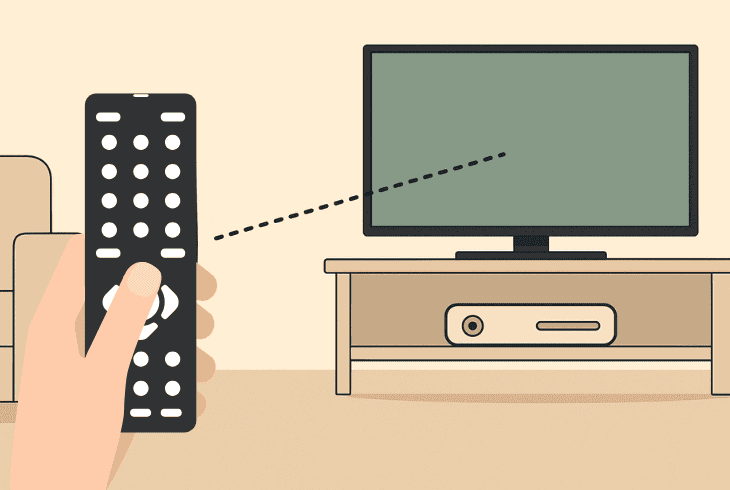
If you are using an older DIRECTV receiver that only supports IR (Infrared), it’s critical to ensure that the line of sight between the receiver and remote is clear.
Unlike the RF signal, which can move through walls, IR requires your remote to be pointed directly at the receiver’s IR sensor.
Hence, if anything is obstructing that line of sight, the remote won’t work!
Here are a few tips to improve the infrared signal:
If none of these helped, keep reading…
6. Test the Remote’s IR Transmitter (IR)
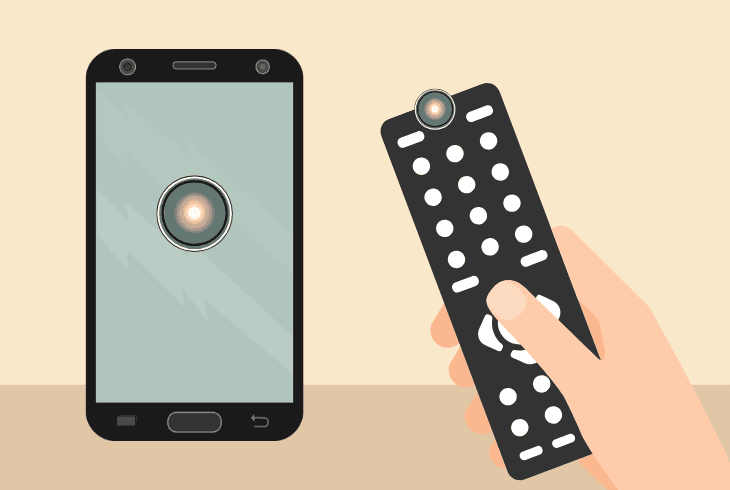
If you are using a DIRECTV receiver that only supports IR, or you prefer using Infrared over RF signal, you need to ensure that your remote transmitter works.
However, the human eye can’t directly see infrared lights, so we’re going to use your phone’s camera to check whether the remote is transmitting a signal.
Use the instructions in step #1 to set your Genie remote to IR mode. Then, point your phone’s camera towards the IR bulb on the tip of the remote and start pressing buttons.
Well, if you see a blinking purplish light, this means that the remote is sending signals to the DIRECTV receiver.
If you don’t see a purplish light through the phone’s camera, the remote is not sending signals and may not be working.
At this point, if you haven’t replaced the batteries, you need to do so.
7. Pair and Utilize a Universal Remote
If your DIRECTV remote stopped working after a physical impact or liquid damage, consider using a universal remote instead.
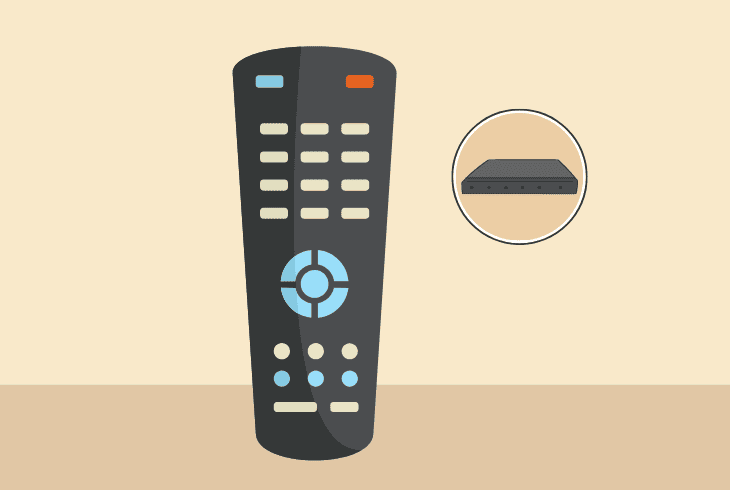
You can either get a basic universal remote for about $10, which only works with IR, or get the specialized DIRECTV Universal Remote.
With an ordinary universal remote, you should be able to control the DIRECTV receiver instantly, unless there are specific steps and a pairing code.
Tip: When you buy your remote, check the documentation for pairing codes and how to use them!
8. Reset DIRECTV Receiver to Default
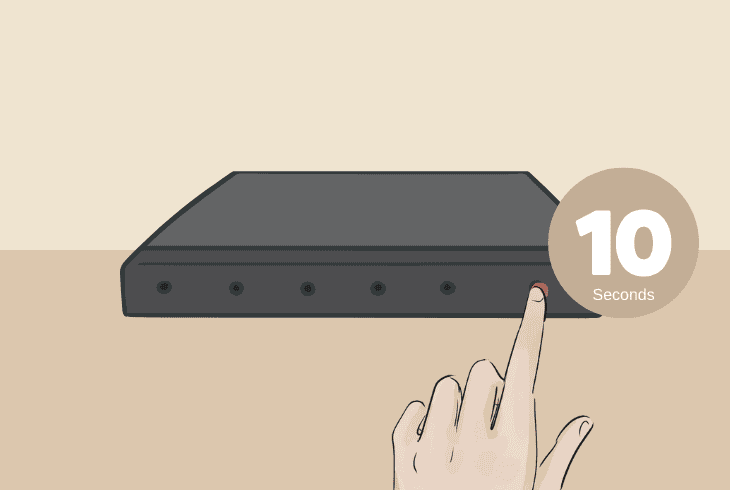
If your DIRECTV Genie remote not working despite all your efforts, it’s time to perform a reset on your DIRECTV receiver.
This will clear potential system bugs that are preventing the remote from pairing, but will permanently erase everything on your receiver, so proceed with caution.
⚠️Warning: This process is irreversible, hence you can’t bring your configurations back!
Here’s how to reset your DIRECTV receiver:
- First, you must locate the small red button on your receiver.
- Info: It’s typically found on the side or inside the access door.
- Press and hold the button for ~10–15 seconds continuously.
- Whenever the DIRECTV receiver restarts, the reset will begin.
When the reset is over, if your DIRECTV receiver supports both IR and RF, you will be able to control the device immediately.
If your receiver only supports IR, reset your remote (step #3) or manually switch to IR mode (step #1).
Note: If you can’t diagnose the issue, get in touch with DIRECTV Customer Service for more help!
Finn Wheatley, a Master’s graduate in Computer Science from UCL, London, honed his skills at small data science consultancies. There, he helped large corporations enhance their data capabilities by deploying cutting-edge machine learning analytics and resolving technical hurdles.


