

DIRECTV Error Code 721? (Fix Channel Issues Now!)


When you see DIRECTV error code 721, there are only two possibilities:
Well, if the channel is not included in your DIRECTV subscription plan, long story short, there is nothing you can do but upgrade your plan.
If, however, the channel does exist in your plan, but you’re seeing error 721, many things might have gone wrong, so let’s get into troubleshooting.
DIRECTV Error Code 721 – 8 Steps to Get Your Channels Back!
Note: Have you tried reconnecting the coaxial cable from the COAX IN port of the receiver?
1. Check your Channel Lineup

The first thing to do is verify that the channel/s you’re receiving error 721 are included in your DIRECTV subscription plan.
As mentioned, error 721 appears on channels that are not a part of your plan, so to justify whether there is an actual issue, you must inspect your channel lineup.
The available plans are:
We recommend going to the DIRECTV Channel Lineup and checking whether the channel you are unable to view due to error 721 exists in your plan.
If it is included, but you can’t view it, continue reading…
2. Restart the DIRECTV Receiver
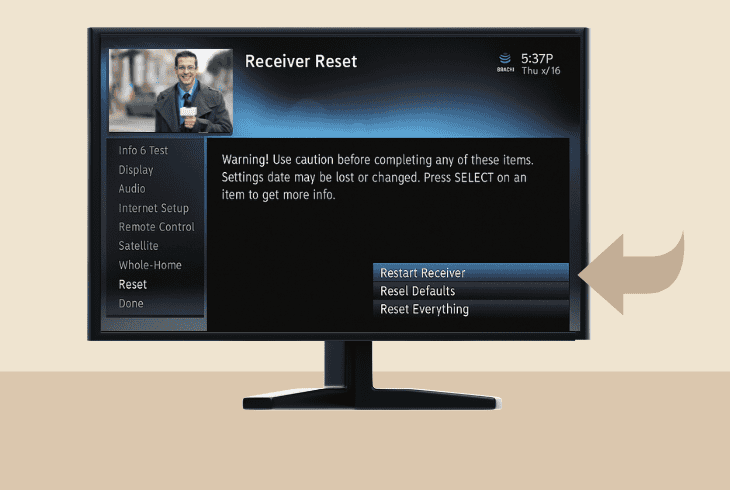
As we are now starting to troubleshoot potential issues, the easiest thing to try is restarting the DIRECTV receiver.
This will reboot the receiver system and potentially resolve unwanted errors.
To reboot your receiver, go to the MENU → “Settings & Help” → “Settings” → “Reset” and “Restart Receiver”.
Alternatively, just unplug the receiver from the power outlet for ~60 seconds and reconnect it.
3. Test Satellite Signal Strength
The next thing to do when some or all of your DIRECTV channels are showing error 721 is to test your satellite dish signal strength.
This is important even if you’re not getting the error on all channels, since some HD channels require a better signal than SD channels.

To test your DIRECTV satellite dish signal strength, follow these steps:
- On your DIRECTV receiver, head to the MENU.
- From there, locate and enter the “Satellite” tab.
- Lastly, select the “View Signal Strength” option.
Then wait for the signal test.
- ✅90–100 is just a perfect signal
- ✅75–90 is a fairly good strength
- ❌70 is terrible satellite reception
If you detect signal problems, jump to step #8.
4. Try Receiver Reauthorization
If your satellite signal is good, but some or all of your DIRECTV channels are showing error 721, you may need to reauthorize your receiver.
This method is also known as a “refresh”, which will reset potential problems with the DIRECTV subscription plan and recover any lost channels.

To reauthorize your DIRECTV receiver, follow these steps:
- On a computer or phone, go to your DIRECTV account.
- Sign in and go to the “My equipment & services” pane.
- Now, choose your receiver and select “Refresh receiver”.
You need to wait ~3–5 minutes to be sure that the reauthorization went through and test if error 721 would continue to appear on your channels.
If yes, keep reading…
5. Update the DIRECTV Receiver
Sometimes, error code 721 DIRECTV simply indicates a system problem, especially if all of the channels are showing this error.
So, a quick manual system update can’t hurt, but surely has a great chance of resolving the problem in a matter of minutes.

The update procedure of the DIRECTV satellite receiver goes as follows:
- Head to the MENU of the DIRECTV receiver.
- Then, go to “Settings & Help” → “Settings”.
- Next, select “Reset” and “Restart Receiver”.
- In the meantime, prepare the remote at hand.
- Now, wait until you see the first blue screen.
- Immediately after, press 0 → 2 → 4 → 6 → 8.
This will trigger a manual DIRECTV firmware update over satellite.
If your signal is good, the unit will update in the following 3–5 minutes.
When the update is ready, test for the 721 error.
6. Reinsert & Clean Access Card
If your DIRECTV receiver is showing error 721 on absolutely every channel, there is a chance that the access card is not being read correctly.
A quick way to exclude this possibility is by removing the card, cleaning it gently, and reinserting it into the DIRECTV receiver card reader slot.
To prevent damaging it, follow the steps below:
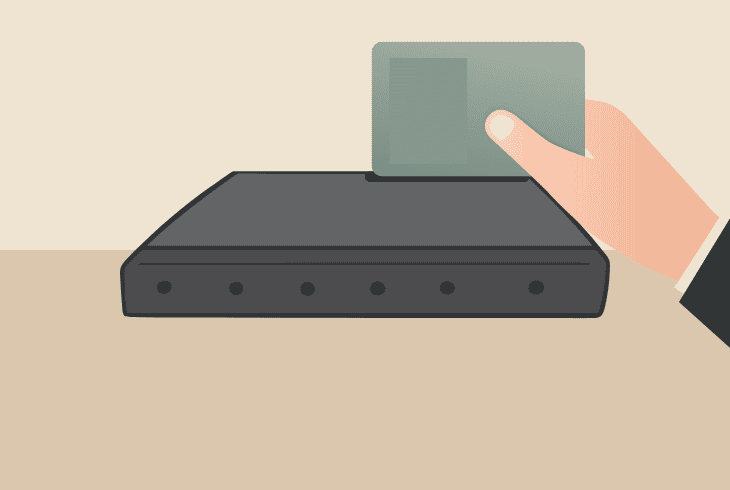
- Locate the Access Card: Find where the access card on your DIRECTV receiver is located (typically behind an access door or near the red button).
- Power OFF Your Receiver: It’s crucial to turn OFF your DIRECTV receiver before removing the access card by unplugging it from the power.
- Remove the Access Card: To remove the access card, you only need to grab it with your fingers and gently pull it out from the card reader slot.
- Cleaning the Access Card: The access card must have a gold chip, which is what your receiver is reading, so wipe it clean (without any liquids).
- Reinsert the Access Card: Look for the small arrow, showing you the side of the card that goes in first, and the face of the card which must be upwards.
Note: If your DIRECTV receiver has a spring-controller access door, make sure it clicks before you turn on your receiver.
7. Factory Reset your Receiver
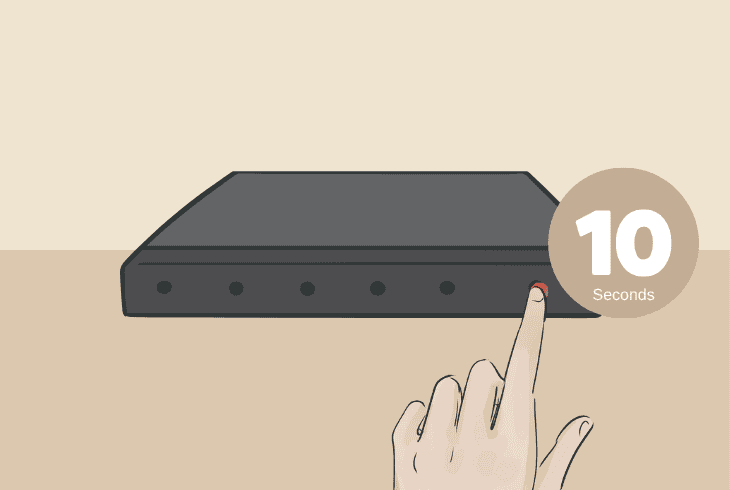
If you’re still receiving error code 721, whether it’s only on a few channels or all of them, it’s time to factory reset your DIRECTV receiver.
The problem could be on a software level, hence a full reset will get the job done in resolving system bugs, but will erase all the receiver settings.
To reset your DIRECTV receiver to defaults, press and hold the small red “Reset” button for ~10–15 seconds continuously.
When the reset is over, your DIRECTV receiver will restart and automatically start adding your channels as per your DIRECTV subscription.
So, wait the process out and test for error 721.
8. Properly Adjust Satellite Dish
One of the first things recommended in this guide is to test the signal strength of your satellite dish.
So, if your readings are below “85”, there is a high chance that the DIRECTV error code 721 appears because the receiver is not getting enough signal for streaming the HD channels.
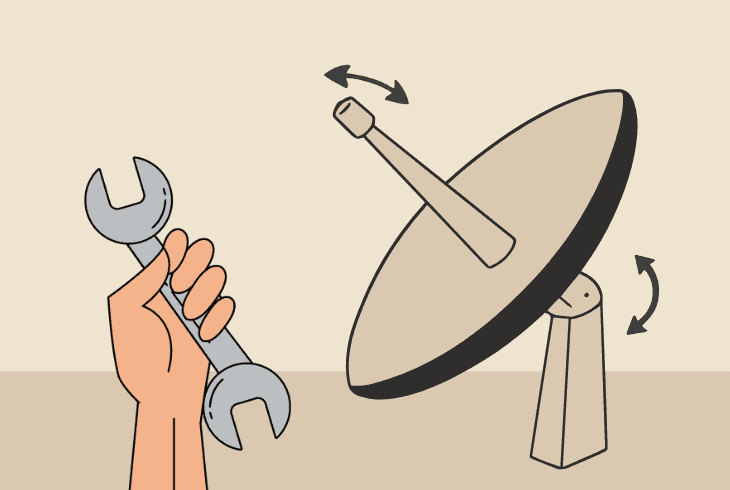
If your dish is not obstructed by anything like snow or fallen leaves, likely, the dish is not pointed correctly as per your exact location.
So, we’ve prepared a thorough step-by-step guide to help you adjust the dish by yourself without technical assistance.
⚠️Warning: If your DIRECTV satellite dish is in a dangerous place, without easy access, we strongly recommend calling a technician and avoiding exposing yourself to dangerous heights.
Step #1 Acquire Azimuth & Elevation
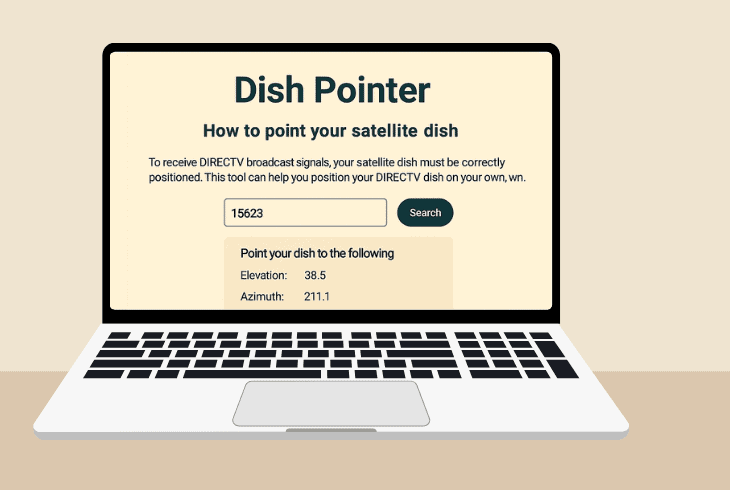
The first step is to go to the DIRECTV Dish Pointer tool and input your five-digit ZIP code to acquire the exact Azimuth and Elevation.
- ⬅️➡️Azimuth: The Azimuth is the left/right direction of your satellite dish, so it can face the direction of the satellite.
- ⬆️⬇️Elevation: The Elevation is the up and down tilt angle of the dish to aim at the satellite’s height as per its position in the sky.
Step #2 Adjust the Elevation (Up/Down)
The next thing to do is locate the elevation scale, which is typically on the mounting bracket and looks like a curved gauge with degree markings.
You must unscrew the 2 bolts to loosen them just enough, so the dish can easily move up and down.
You’ll need a compatible wrench!
Move the dish and perfectly align it with the shown elevation value from the dish pointer tool.
The bracket often shows in degrees (0°–90°), so line up the bracket lines with the exact mark.
Finally, tighten the screws with the wrench to lock in the elevation position.
Step #3 Adjust the Azimuth (Left/Right)
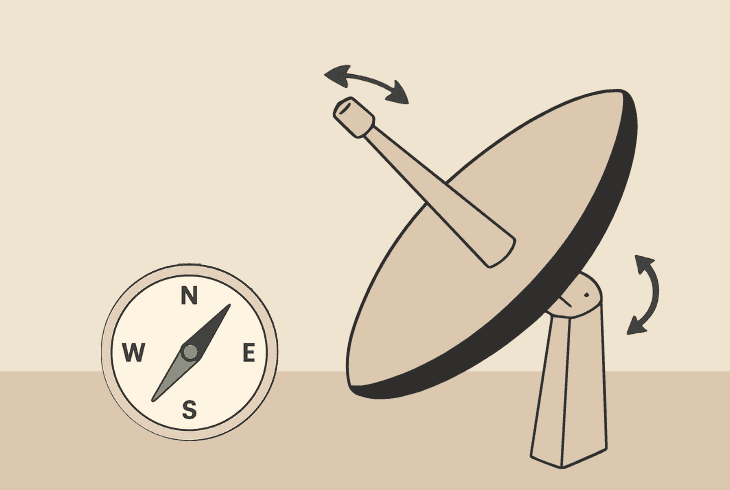
To adjust the Azimuth of your satellite dish, again, you must unscrew the bolts on the bottom of the clamp where the dish is connected.
However, there are no markings here you can follow, so you’ll either need a real compass or a smartphone compass app.
According to the Azimuth shown in the dish pointer tool, you must rotate the dish to the left or the right and align it with your compass according to the value.
You need to be precise here, as even 1–2° can have a significant impact on your signal strength.
When ready, don’t forget to tighten the screws to lock in the Azimuth position.
Tip: When your dish is pointed correctly, test your signal strength again (reference in step #1).
Finn Wheatley, a Master’s graduate in Computer Science from UCL, London, honed his skills at small data science consultancies. There, he helped large corporations enhance their data capabilities by deploying cutting-edge machine learning analytics and resolving technical hurdles.


