

DIRECTV 771 Error Code? (Fix Signal Issues Fast!)


We understand that the DIRECTV 771 error code could appear out of the sudden, without a clear reason or any particular pattern to help you identify it.
Don’t worry–this is a common error and means “Signal Loss”. In short, your receiver cannot communicate with your satellite dish for one reason or another.
However, in this quick and easy guide, we’ll walk you through a series of steps to help you identify and resolve the “771” error.
Let’s get into troubleshooting!
How To Fix DIRECTV 771 Error Code in 9 Guaranteed Methods!
📍Note: Have you tried power cycling your DIRECTV receiver by unplugging it from the power?
1. Test Satellite Dish Signal Strength
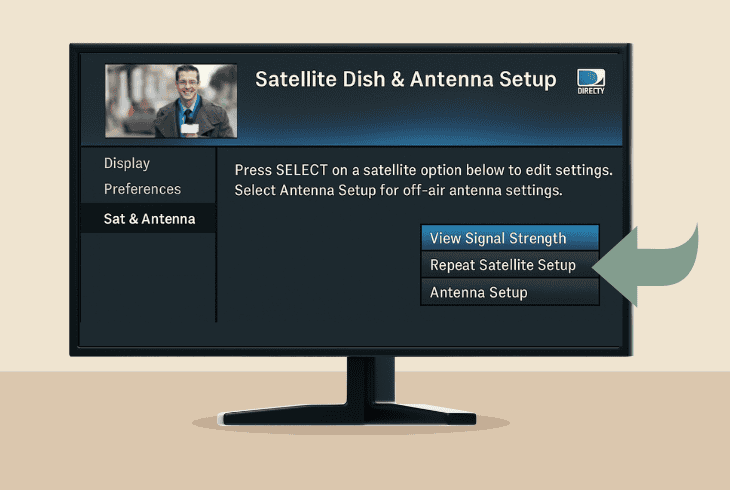
When you see the 771 “DIRECTV Signal Loss” error, the first thing to check is whether your receiver has completely lost communication with the dish or the signal is weak.
You can easily do that by testing the signal strength through the receiver.
Here’s how:
- On your DIRECTV receiver, head to the MENU.
- From there, select the “Satellite” menu section.
- Pick “View Signal Strength” and start the test.
There are three possible outcomes here:
📍Note: If you identify that there is no signal to your receiver, jump to step #4.
2. Authorize your DIRECTV Receiver
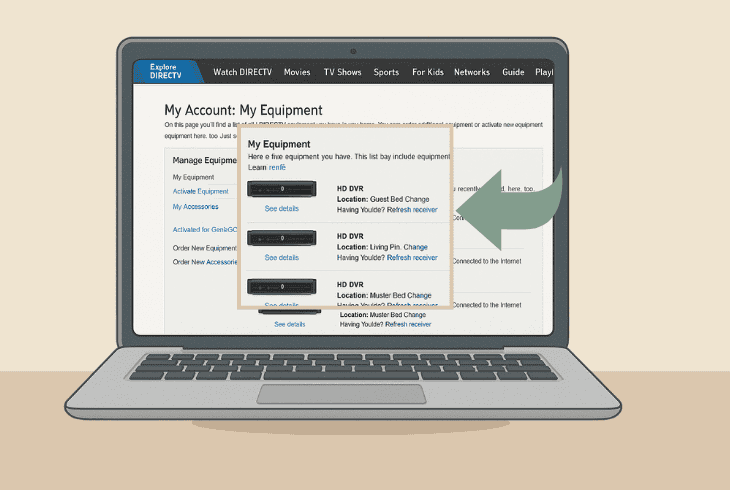
Sometimes, error 771 appears because of a bug in the authorization of your DIRECTV receiver, and the best course of action would be reauthorization.
The process is quick, easy, and doesn’t erase anything, but refreshes your receiver and clears any errors that appear because of system bugs/glitches.
Here’s how to reauthorize a DIRECTV receiver:
- On a PC, go to the DIRECTV Login page and sign in.
- Then, head to the “My equipment & services” pane.
- From there, you must choose your DIRECTV receiver.
- Finally, select “Refresh receiver” and wait 30 seconds.
📍Note: When the reauthorization is ready, power cycle your receiver!
3. Update the DIRECTV Receiver OS
If you have a signal from the satellite dish to your receiver, but the DIRECTV error code 771 is still there, we recommend updating the receiver.
The update happens over the satellite signal, so as long as your dish is communicating with your receiver, the update should proceed normally.
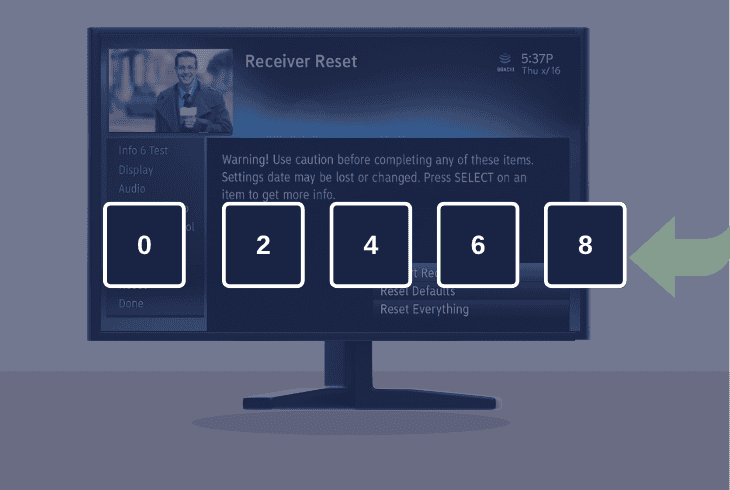
To update a DIRECTV receiver, restart the device, and when you see the blue screen, use your remote to quickly press 0 → 2 → 4 → 6 → 8.
The DIRECTV receiver will start looking for an update. If the update won’t go through, this only shows that there is no signal to the receiver.
In that case, continue with the next solution steps!
4. Reinsert your DIRECTV “CAMID”

The CAMID or Conditional Access Module Identification Card is your key to viewing any DIRECTV channels without signal errors.
If you keep seeing error 771, “DIRECTV Signal Loss”, it could mean that your receiver is not able to read the card properly. Hence, one of the best things to try is to reinsert your CAMID.
You should eject the card by opening the access door, clean the contacts, and reinsert the card by following the orientation arrow at the top.
If this does not work, then continue reading ahead.
5. Inspect Connections in the Setup
If you have no signal from your satellite dish to your DIRECTV receiver, there is a good chance that there is something wrong with the connections in your setup.
That’s why we will walk you through the entire setup, so you can check whether ALL the cables are connected properly.
Image 6
📍Note: While inspecting the coax cable’s check whether the barrel connectors are intact and if there is something loose, missing, or visually damaged.
6. Try Connecting your SMW Directly
When you’re in the middle of a DIRECTV troubleshooting no signal, there is one key aspect that you must inspect and verify–your splitter.
If you’re using a coax splitter, the issue could be coming from the device spreading the signal, especially if you have more than one DIRECTV receiver.
However, it’s worth trying to bypass the coaxial splitter, just in case the issue lies there.
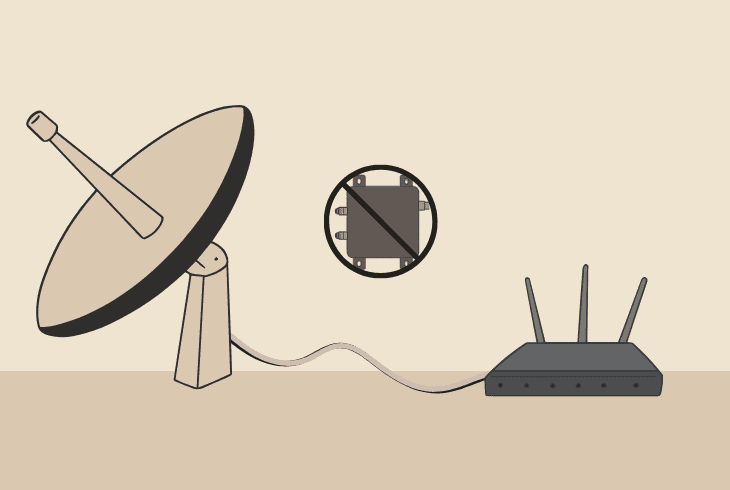
To do so, just connect the Coax cable that is originally connected to the splitter directly into the “SAT IN” port of your DIRECTV receiver.
Then, run another signal strength test and see!
7. Ensure that your SMW is Working
Another reason why the DIRECTV receiver can’t communicate with the satellite dish is that your SMW is not working.
If the SMW is not working, the signal from the dish will not reach the box, and you’ll get zeros (0) when testing the signal strength.
That’s why error 771 appears!
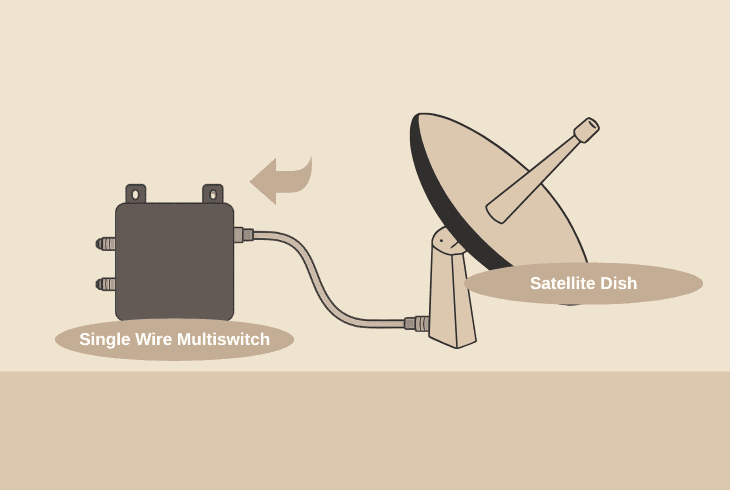
The first thing to do here is reconnect the SMW from the outlet. If this doesn’t work, check if your SMW has a reset button and try to reset it.
💡Pro Tip: If you have a multimeter, you can test whether the cable connecting to the “Power to SMW” port is delivering any voltage.
8. Verify the Satellite Dish Installation
If you’re still encountering the 771 “DIRECTV Signal Loss” error on your receiver, the problem could be down to your satellite dish installation.
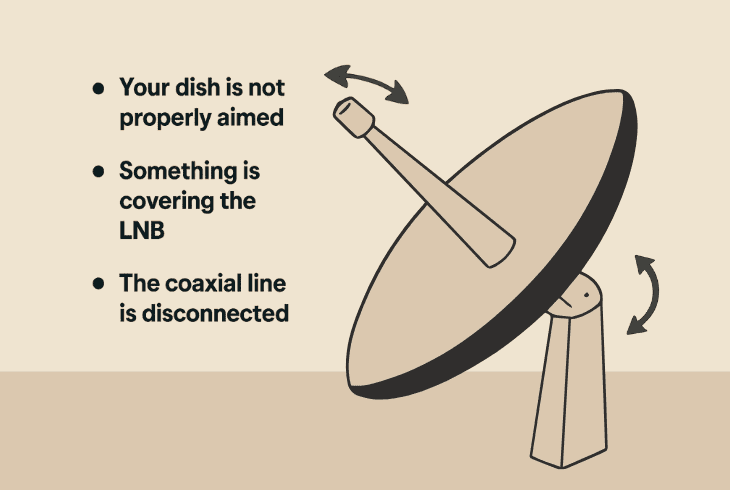
There are several possibilities:
- Your dish is not properly aimed
- Something is covering the LNB
- The coaxial line is disconnected
So, if you have easy access to your dish, we can guide you through all these steps of verifying that everything is intact and troubleshooting accordingly.
⚠️Warning: If your satellite dish is in an inaccessible place, we recommend calling a technician!
Step #1 – Coaxial Inspection
First, go over your DIRECTV satellite dish and take a close look at the coaxial cable that plugs into the dish and then connects to your SWM (Single Wire Multiswitch).
We recommend testing if the cable is wobbly, even disconnecting it to inspect for any visible damage or corrosion.
Step #2 – Satellite Alignment
To align your DIRECTV satellite dish properly, you need to go to the DIRECTV Dish Pointer Tool and acquire the Elevation and Azimuth as per your location.
You must insert the ZIP code and note down the values for both dish positions.
Step #3 – Clear Obstructions

Finally, you need to inspect whether the satellite dish, especially the LNB (small devices on the tip), is covered or obstructed.
Common obstructions are fallen leaves and snow, so make sure that nothing is obstructing the satellite dish LNB.
When you’re ready with the steps, go ahead and run a signal strength test on your receiver to see whether the signal is back and has been improved.
9. Factory Reset DIRECTV Receiver
If nothing helps against the DIRECTV 771 error code, the issue could also be coming from the receiver, especially on a software level.
That’s why the next and final step is to factory reset the DIRECTV receiver, which will reinstall the operating system and solve bugs along the way.
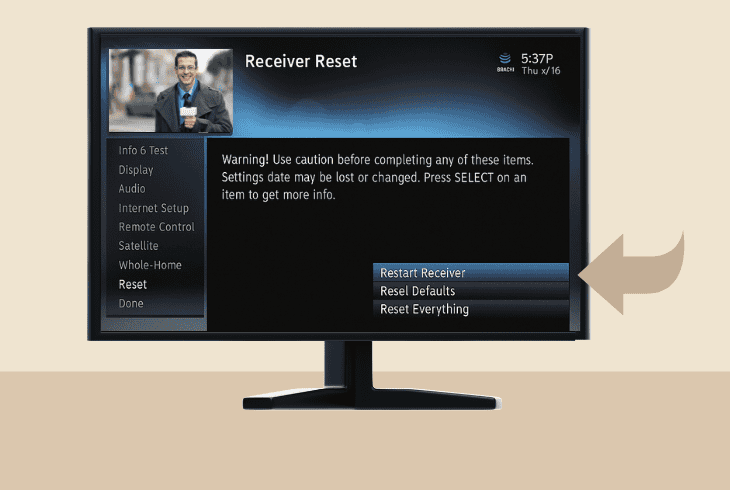
- To factory reset a DIRECTV receiver, go to “Settings” → “System” → “Restart/Reset” → “Factory Reset”.
Alternatively, you can use the physical reset button found on the side or inside the access door and hold it for about 15 seconds continuously.
When the DIRECTV receiver is reset, go through the initialization steps, wait for your channels to be automatically added, and test for error 771.
📍Note: If you can’t identify where error 771 comes from, get in touch with DIRECTV Customer Support for more assistance.
Finn Wheatley, a Master’s graduate in Computer Science from UCL, London, honed his skills at small data science consultancies. There, he helped large corporations enhance their data capabilities by deploying cutting-edge machine learning analytics and resolving technical hurdles.


