
Xfinity Stream Not Showing All Channels? (Fix It Fast!)

We know how frustrating it must be when your Xfinity Stream not showing all channels, even though you’re paying for them.
Don’t worry–this is a common problem, and there are many ways to resolve it and bring back your missing channels.
Without further ado, let’s get into the troubleshooting!
Xfinity Stream Not Showing All Channels – 11 Easy Methods!
📍Note: Have you tried force-closing the app and opening it cleanly?
1. Use the In-Home Internet Network
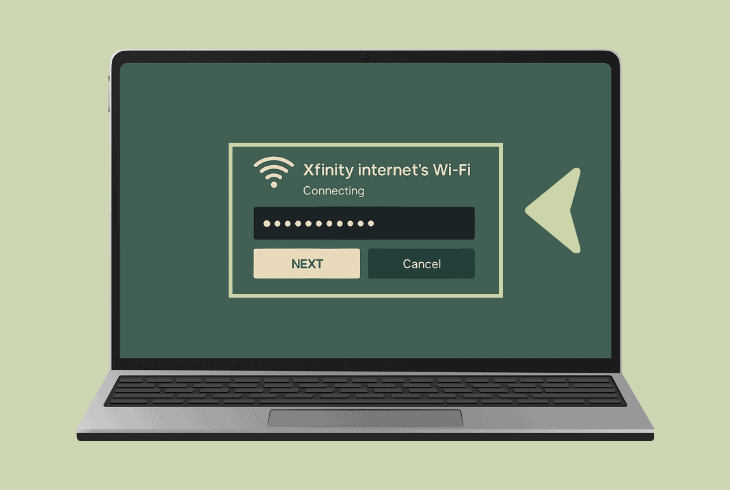
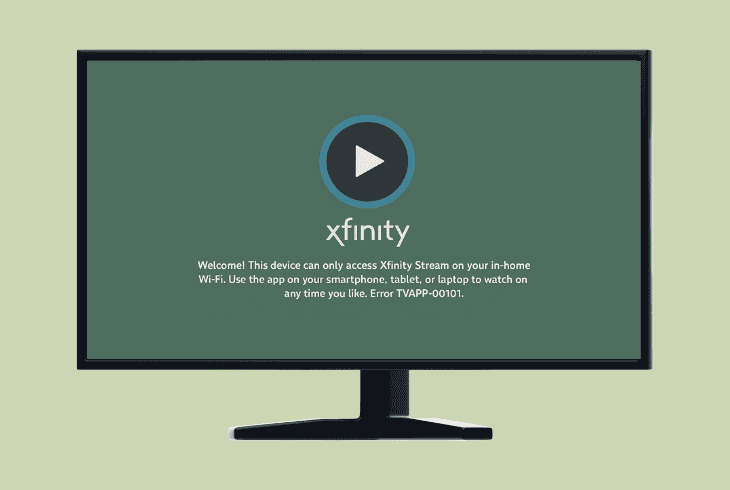
With Xfinity Stream, it matters whether you’re using your in-home Xfinity internet on the device that you’re trying to view local channels.
This is because Xfinity Stream uses your ZIP/postal code (based on your internet) to determine which local channels to show you based on your area and package.
So, when you are using a guest Wi-Fi or hotspot, for example, you’ll not be able to view local channels on Xfinity Stream.
Let’s learn more…
ℹ️In-Home Vs. Out-of-Home
When you’re at home, and your streaming device is connected to your router (Xfinity internet), you will receive local channels based on your subscription.
They typically include ABC, NBC, CBS, FOX, and more, as well as your full-channel lineup also including on-demand content.
In contrast, when you’re Out-of-Home (not on your Xfinity internet), you will be limited to only “TV Go” channels, which means no local channels.
📍Note: The local channels depend on your area and what’s included in your Xfinity package!
2. Check the Xfinity Stream Package

If you are missing channels on your Xfinity Stream that you were expecting to see, maybe they are not available in your area.
So, the first thing to do is check your channel lineup by inputting your street address and ZIP code to reveal which channels are supported in your specific area.
If a certain set of channels is supported, but you’re still missing them in the Xfinity Stream app, maybe your plan does not include them.
So, go to the Xfinity Stream Packages, and review them:
So, based on your area and Xfinity package, try to determine whether the missing channels are supported and whether there is a real problem.
If you find out that a channel/s that you’re supposed to have are missing, keep reading ahead!
3. Test Internet Speed & Availability
A quick thing to try next is to test your Xfinity internet speed, preferably through the device you are streaming content from.

This is because if you test from your computer, this does not show you the actual speed that, for example, your smart TV receives.
If you see anything below 5 Mbps, this means that your internet is too slow to stream channels and perhaps your Xfinity Stream app is lagging behind.
📍Note: If your Xfinity internet is too slow or your streaming device is offline, restart your Wi-Fi router!
4. Check and Disable VPN Services
If your Xfinity Stream app not showing all channels, you might be using a VPN (Virtual Private Network), misleading the app about your actual location.
VPN services are designed to hide your actual IP address on the web (for safety reasons) by altering and rerouting your access.

This means that even if you’re at home, with an active VPN, the Xfinity Stream app would be seeing a different location for your service.
If this new location is in the US, you might have slightly different local channels than in your original location.
Even worse, if the VPN reroutes your address from outside the US, not only local channels, but your Xfinity Stream app wouldn’t even load up.
Based on your device, a VPN could be:
Try to locate and disable a VPN service on your network. This should immediately fix the issue!
5. Bypass Extenders/Access Points

If your Xfinity Stream app is just not showing the channels you’re supposed to have, verify that you are not connected to an access point.
If you have a Wi-Fi extender or some sort of access point, even though this is still your Xfinity internet, it may cause vast content limitations.
We recommend connecting to your Wi-Fi router directly, either through Wi-Fi or via Ethernet connection.
💡Quick Tip: Another thing to try is to forget the Wi-Fi on your streaming device and cleanly reconnect!
6. Check for Ongoing Xfinity Outage

Sometimes, when a certain set of channels is just missing from the Xfinity Stream app, the issue is not on your side.
There could be an ongoing service outage or maintenance affecting your Xfinity Stream application and temporarily preventing some channels from appearing in the app.
To check, you can visit the Xfinity Outage Map and input your service location details. Then, if there is an ongoing outage, maybe you should wait.
📍Note: Even if the outage is not exactly in your area, it may affect some channels everywhere!
7. Sign Out & In Your Xfinity Account
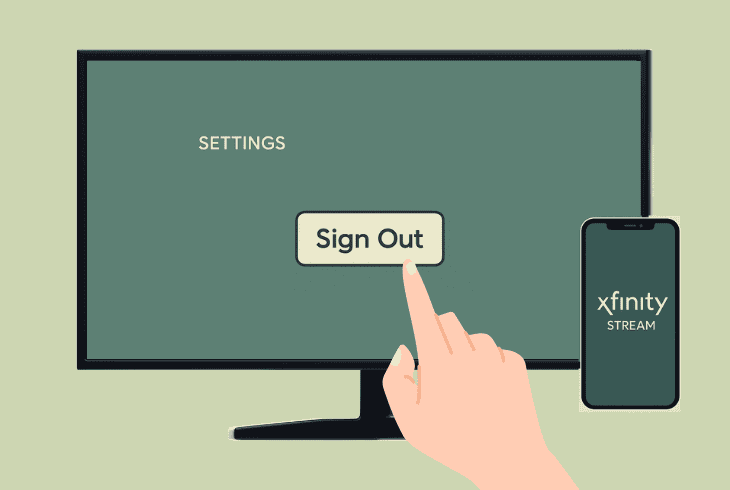
Another quick thing to do is sign out and in to your Xfinity Stream app account, which will reset the provisioning to your account and hopefully fix the issue.
- To sign out, go to “Settings” → “Sign Out”.
Then, you’ll be brought back to the login screen, so insert your master Xfinity ID and password and check whether all channels are now available.
8. Remove & Re-Activate the Device
Sometimes, when your Xfinity Stream app is not showing all the channels you are supposed to have, you need to remove your device from your account.
Then, upon signing in, you will be prompted to reauthorize your device, which solves many account and provisioning problems.

To re-link your device, follow these steps:
- Start by signing out of your Xfinity Stream app.
- Then, head to the Xfinity Website and sign in.
- Navigate to “Devices” or “Connected Devices”.
- Locate your streaming device and “Remove” it.
- Then open the Xfinity Stream app on the device.
- Sign in to reveal the “Let’s get started!” prompt.
- On a secondary device, head to Xfinity Activation.
- Type the 6-digit code shown on the streaming unit.
- Shortly, you should see the “Success!” message.
When you reauthorize your device, test whether all of the channels are now available in the app!
9. Test Xfinity on a Different Device

If you’re still not getting the channels you’re paying for on the Xfinity Stream app, try signing in and activating another device.
You can use a smartphone or a smart TV as long as you can get the Xfinity Stream app from the dedicated app store.
Use the instructions from the previous step to activate it and check whether the channels you are looking for are available on the secondary device.
If not, the problem is likely with your account.
10. Check your Xfinity Account Billing
In many cases, when a lot of channels are missing from your Xfinity Stream app, the problem could be due to your account membership.
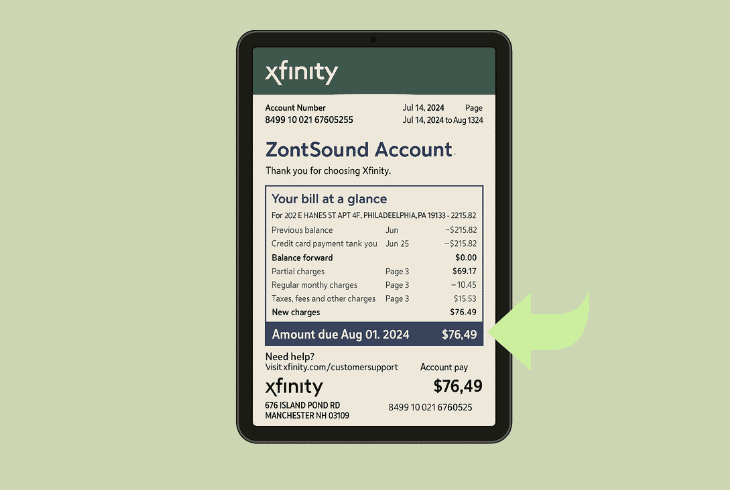
Well, if you have dropped a tier, for example, from STARTER to ECONOMY or from ECONOMY to BASIC, your channel lineup will be limited.
So we advise signing into the official Xfinity Website, and going to “Billing” → “Bill Details” to reveal the membership of your account.
💡Reminder: Then, double-check the channels that come with your current subscription!
11. Reinstall Xfinity Stream Application

If Xfinity Stream not showing all channels and you have no idea what to do next, there is one last thing to try before concluding.
We recommend uninstalling and reinstalling the Xfinity app on your streaming device to ensure that there are no ongoing bugs.
This will not only guarantee a clean app cache, but also that you’re running the most recent and updated version of the Xfinity Stream app.
Here’s how to reinstall the Xfinity Stream on popular platforms:
| Smart TV: | |
| Roku | Highlight Xfinity Stream from the home screen→ press * (Options) → Remove channel |
| Fire TV | Settings → Apps → Manage Installed Applications → Xfinity Stream → Uninstall |
| Samsung | Home → Apps → Settings → choose Xfinity Stream → Delete |
| Android TV | Settings → Apps → See all apps → choose Xfinity Stream → Uninstall |
| Smartphone: | |
| Android | Settings → Apps or Apps & notifications → See all apps → Xfinity Stream → Uninstall |
| iOS | Home Screen → press and hold Xfinity Stream App → Remove App → Delete App |
When ready, download the Xfinity Stream app from the dedicated store of your device and test whether the channels you’re supposed to have are available.
📍Note: If your channels are still missing, get in touch with Xfinity Customer Service for account intervention and problem-solving.
Finn Wheatley, a Master’s graduate in Computer Science from UCL, London, honed his skills at small data science consultancies. There, he helped large corporations enhance their data capabilities by deploying cutting-edge machine learning analytics and resolving technical hurdles.