
Xfinity Stream Roku Not Working? (Here’s the Fix!)


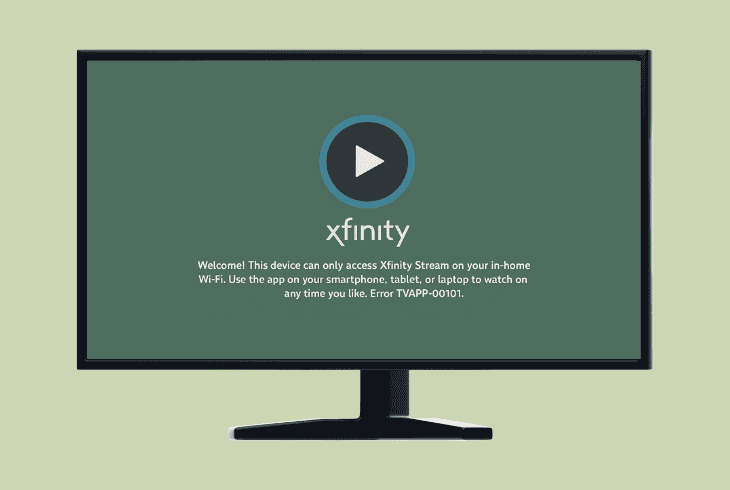
We know the frustration when Xfinity Stream Roku not working, even though you were really hoping to get this ready and enjoy some content.
Well, setting up Xfinity Stream on Roku is not as straightforward as installing YouTube or Netflix, so this guide will walk you through the process and troubleshooting.
The first thing you need to see is whether your Roku device supports Xfinity Stream, as this is the foundation of your setup.
Here’s a quick reference:
| Xfinity Supported Roku Models | |
| Roku Streaming Sticks | 3600X, 3800X, 3810X, 3820X, 3821X |
| Roku Express & 4K | 3700X, 3710X, 3900X, 3910X, 3930X, 3931X, 3940X, 3941X |
| Roku Premiere Series | 3920X, 3921X, 4620X, 4630X |
| Roku Ultra & Ultra LT | 4640X, 4660X, 4662X, 4670X, 4800X |
| Roku 2 & 3 | 4200X, 4210X, 4230X |
| Roku TVs | 6000X, 8000X, D000X, 7000X, G000X, A000X, 5000X, C000X |
⚠️Warning: If your Roku model does not support Xfinity Stream, the app wouldn’t appear in the App Store!
Xfinity Stream Roku Not Working – Fixed in 8 Working Steps!
📍Note: Have you tried restarting your Roku device and power cycling your router by unplugging it from the power outlet for ~60 seconds?
1. Activate Xfinity Stream on Roku

To watch Xfinity Stream on Roku devices, you first need to have your Xfinity service, whether it’s internet or TV, set up and ready to use.
Then, you’ll need to activate your Xfinity Stream on your Roku by authorizing the device, which occurs right after you download the app for the first time.
📍Note: If you have already activated Xfinity Stream, jump to the next step!
Step #1 – Verify the Requirements
The first step is to ensure that you comply with the two main requirements:
Step #2 – Activate Xfinity on Roku

Here’s how to activate Xfinity Stream on supported Roku devices:
- Go to the “Streaming Channels” → “Channel Store” on Roku.
- Download the Xfinity Stream channel and open the application.
- Select “Sign In” from the top right corner of your Xfinity Stream.
- You’ll see the 6-digit activation code under “Let’s get started!”.
- Go to the Xfinity Authorization page and insert the 6-digit code.
- Note: You must use a different device for this (not your Roku).
- Then type in your Xfinity ID and password and click “Sign In”.
- When you see the “Success!” message, your app is activated.
- Accept the Terms of Activation on your Roku and select “Yes”.
- Name your device and start using your Xfinity Stream channel.
📍Note: If you’re facing issues with the activation, especially if you have more than one Xfinity account, you’ll need to make one of them primary and then activate Xfinity Stream on your Roku.
2. Sign Out and In the Xfinity Stream
Sometimes, even if your Xfinity Stream channel is activated on your Roku, you may face issues while attempting to stream due to account bugs.
To solve this problem, it’s sometimes enough to just sign out and in the Xfinify Stream channel on your Roku.
To do so, go to the “Settings” → “Sign Out” and “OK”.

Then you’ll be brought back to the login page, so insert the Xfinity ID and password and sign in.
If this didn’t work, keep reading…
3. Inspect your Internet Connection
If your Xfinity Stream app not working on Roku, the next step is to ensure that your internet is intact and your Roku device is successfully connected.
To check whether your Roku is online, go to “Settings” → “Network” → “Check Connection” and wait for the checking tool to go through your network.
So, if your Roku is offline, this immediately explains the problem.
To fix the issue, select “Set up connection” and choose your Xfinity internet Wi-Fi.
If you have a dual-band router, we strongly recommend using the 2.4 GHz Wi-Fi band instead of the 5 GHz Wi-Fi due to its better reliability.
👉Switch to a Wired Connection

If you’re facing issues with your Wi-Fi and your Roku device supports Ethernet, you can connect your router to Roku directly.
You must connect the LAN port of the router with the Ethernet port on your Roku device and go to “Set up connection” → “Wired” to bypass all Wi-Fi limitations.
💡Tip: There is a quick test you can do to identify the internet issues, by sharing a hotspot from your phone and connecting your Roku with it, just to test whether Xfinity Stream would work.
4. Update the Roku Device Firmware
If your Xfinity Stream channel is crashing, freezing, or won’t open, the next troubleshooting step should be to update your Roku to the latest version.
To update your Roku device, make sure that it’s online and head to “Settings” → “System” → “Software update” → “Check Now”.

If there is an update that is available, make sure to install it now and then test Xfinity Stream!
5. Clear Roku Channels’ Cache Data
Sometimes, when Xfinity Stream not working on Roku, the problem comes due to storage faults, especially in the cache data of your channels.
Luckily, on Roku devices, you can clear the cache for your entire device with a simple key combination.
- To clear the cache on Roku, grab your remote, go to the home screen, and press Home 5x times → Up 1x time → Rewind 2x times → Fast Forward 2x times.
The Roku screen will freeze for a few seconds and then reboot, clearing the cache data and solving channel-related bugs and glitches.

📍Note: This process will sign you out of your channel accounts.
6. Remove & Reinstall Xfinity Stream
If nothing helps so far and your Xfinity Stream channel is not working on Roku, it’s time for a full reinstallation by removing the channel and getting it back.
When you’re ready, you must sign in to the Xfinity account by using an Xfinity ID and password. If you are required to activate your channel again, follow the steps in solution #1 for reference.
7. Stop Roku Automatic Refresh Rate
In some rare cases, channels such as Xfinity Stream will straightforwardly crash after opening them due to the Roku automatic refresh rate changes.
This happens because of a display mismatch, but you can easily disable the setting by going to “Settings” → “System” → “Advanced system settings” → “Advanced display settings”.
When there, just set “Auto-adjust display refresh rate” to “Disabled” and test Xfinity Stream!
8. Reset your Roku Device to Defaults

When Xfinity Stream Roku not working, the issue could be on a software level, and the only way to fix it would be to reset your Roku to its defaults.
This method will reinstall the system of your Roku and address potential hardware issues that are affecting channels and functions.
⚠️Warning: The factory reset will permanently erase everything from your Roku device!
Here’s how to factory reset Roku in easy steps:
- First, navigate to the “Settings” → “System”.
- Then head to “Advanced system settings”.
- Finally, choose “Factory reset everything”.
Your Roku device will restart and reset to factory settings.
Then you’ll need to go through the initial steps for setting up the device, and when ready, you can install and test Xfinity Stream.
💡Tip: If your Xfinity Stream is still not working, see further assistance from the Xfinity Stream Support.
Finn Wheatley, a Master’s graduate in Computer Science from UCL, London, honed his skills at small data science consultancies. There, he helped large corporations enhance their data capabilities by deploying cutting-edge machine learning analytics and resolving technical hurdles.